
Your wedding website, from first names to live
Four short steps to a design with your names in it, an editor with a live preview, and one link your guests use to read, reply and send their photos — free, in eight languages.
The Eventadore team7 min readUpdated 19 October 2026
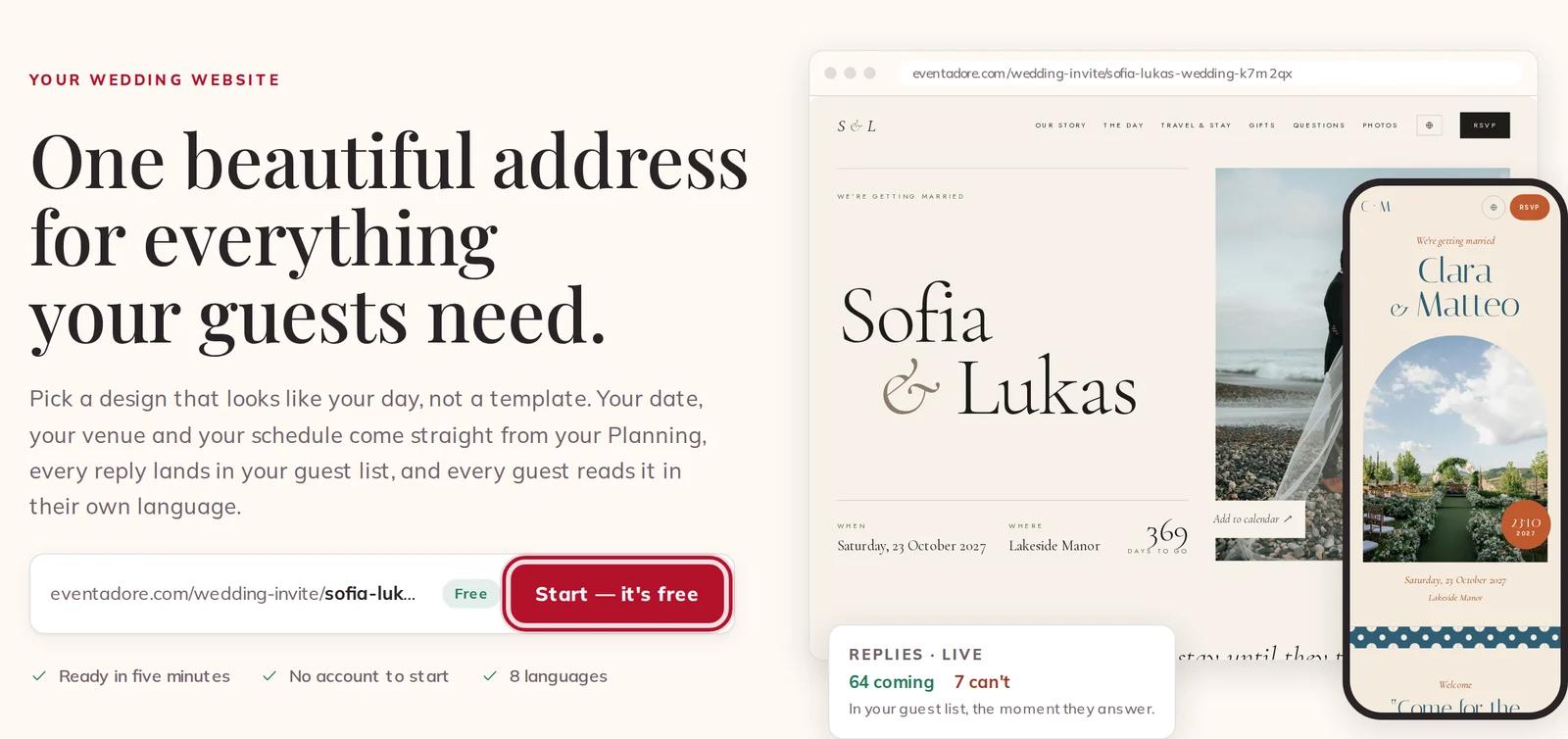
Your wedding website is free, and it lives at one address on eventadore.com that you send to everyone: on the card, by WhatsApp, as a QR code. Your guests read it in their own language and reply right there, and every reply lands in your guest list.
You can start without an account. Plan about fifteen minutes for the first version.
1 · Start
Open Wedding website at the top of any page and press Start — it's free. If you are not signed in, your draft is kept in this browser until you publish — the builder says Kept in this browser until you publish. If you are signed in, the same page opens your builder, or your website in your Planning once you have one.
2 · You two
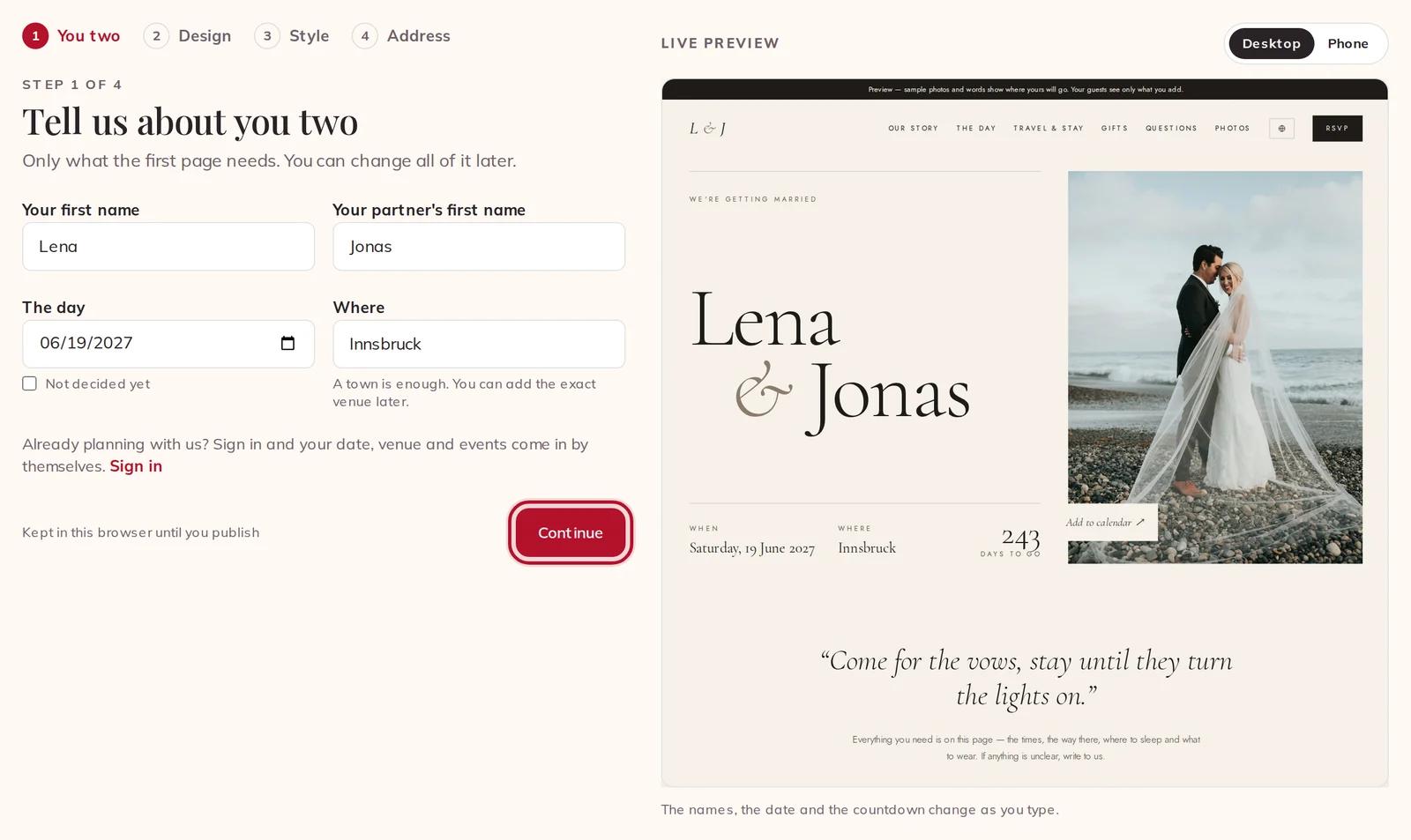
Step 1 of 4 asks only what the first page needs: Your first name, Your partner's first name, The day — or tick Not decided yet — and Where, where a town is enough. The live preview on the right changes as you type.
If you are signed in and planning with us, your names are filled in and the day and place come from your Planning: the step says Taken from your Planning.
3 · Design
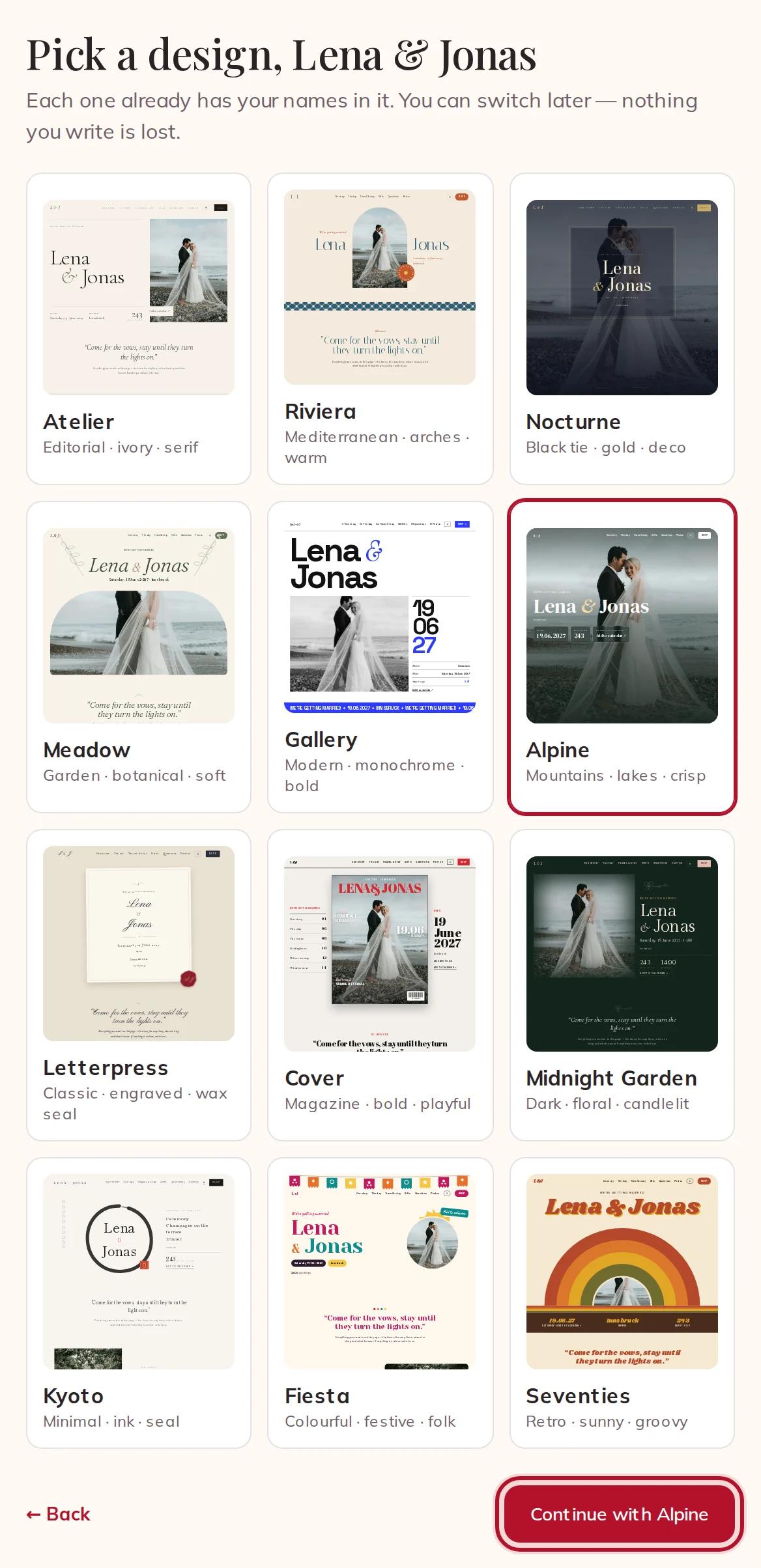
There are twelve designs, and each one is already drawn with your names and sample photos. Pick one and press Continue at the bottom — the button names the design you chose. You can switch to another design any time later; your words and photos stay.
4 · Style
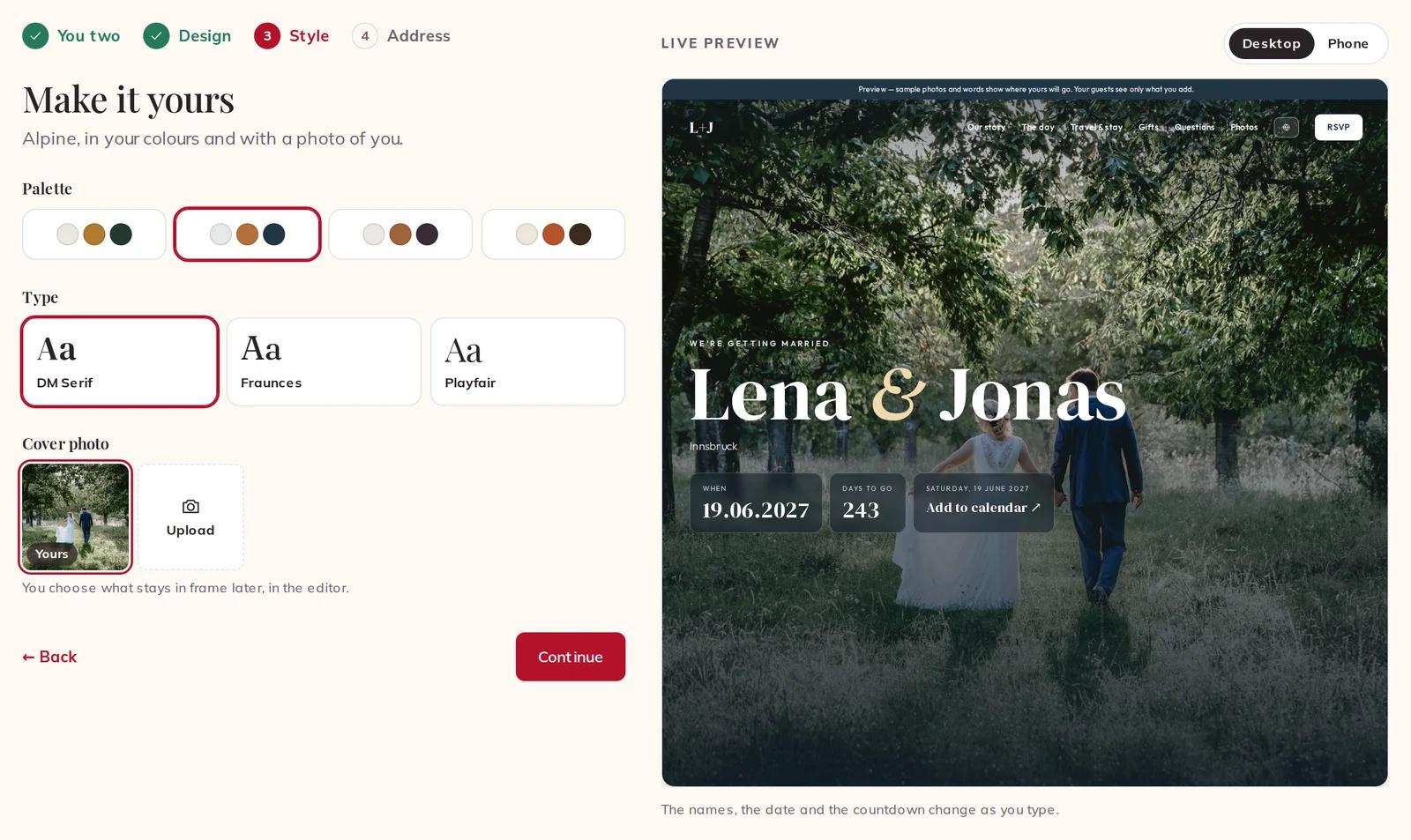
Choose a Palette and a Type — each design has its own. Under Cover photo, press Upload and choose a photo of you two; the first one you add becomes the cover. You choose what stays in frame later, in the editor.
5 · Your address
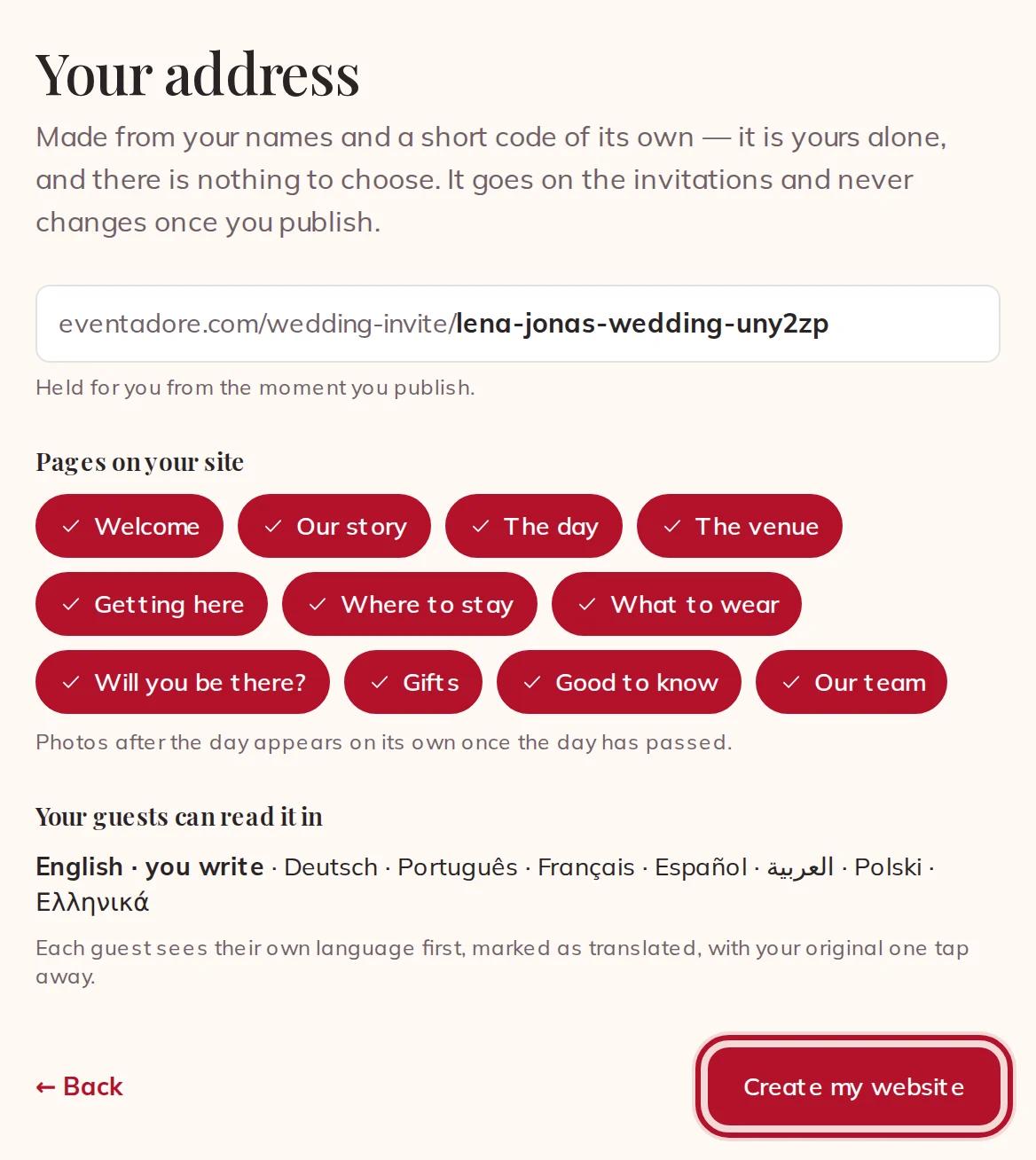
Your address is made for you: your two first names, the word "wedding" and a short code of its own. There is nothing to choose or type, and nobody else can ever have it.
Below it, Pages on your site lists the sections your site starts with — tap one to leave it out. Your guests can read it in shows the eight languages. Press Create my website.
6 · Write your sections
The editor has four tabs: Sections, Design, Privacy and Languages. In Sections, open a section to write in it, move it with the arrows, and use its tickbox to show or hide it. Write once, in your own language. The preview beside it switches between Desktop and Phone, and everything is saved as you type — the bar at the top says Saved.

Some sections fill themselves from your Planning: The day shows the events of your guest list and the times of your running order, The venue your booked venue with its address, and Our team the suppliers you booked here, each linked to their profile. Our team is on from the start; untick Show our team inside it to hide it.
In Will you be there? tick Ask guests for a song if you want a song for the dance floor with every reply. Replies need your guest list and a reply date, which you set in the guest list.
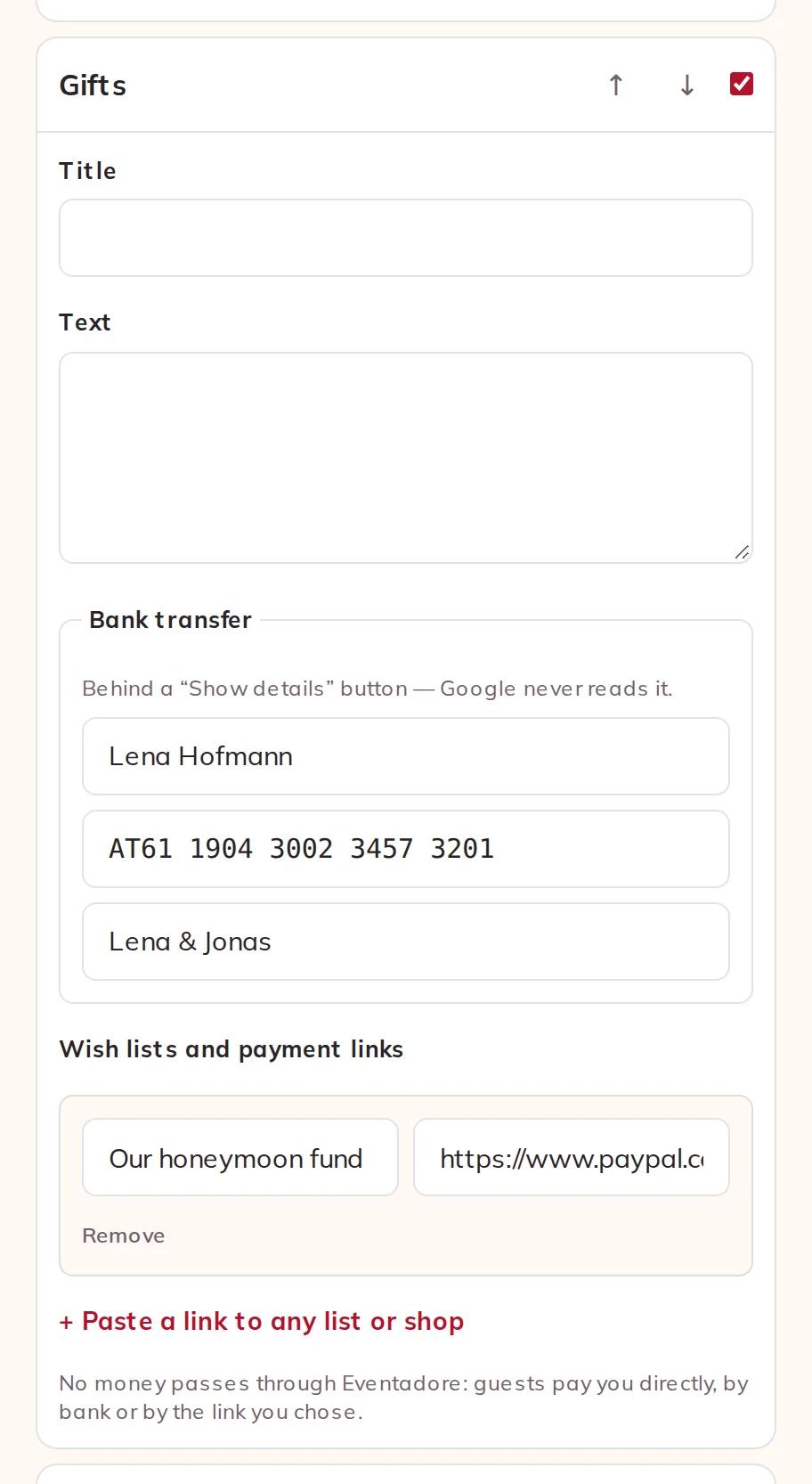
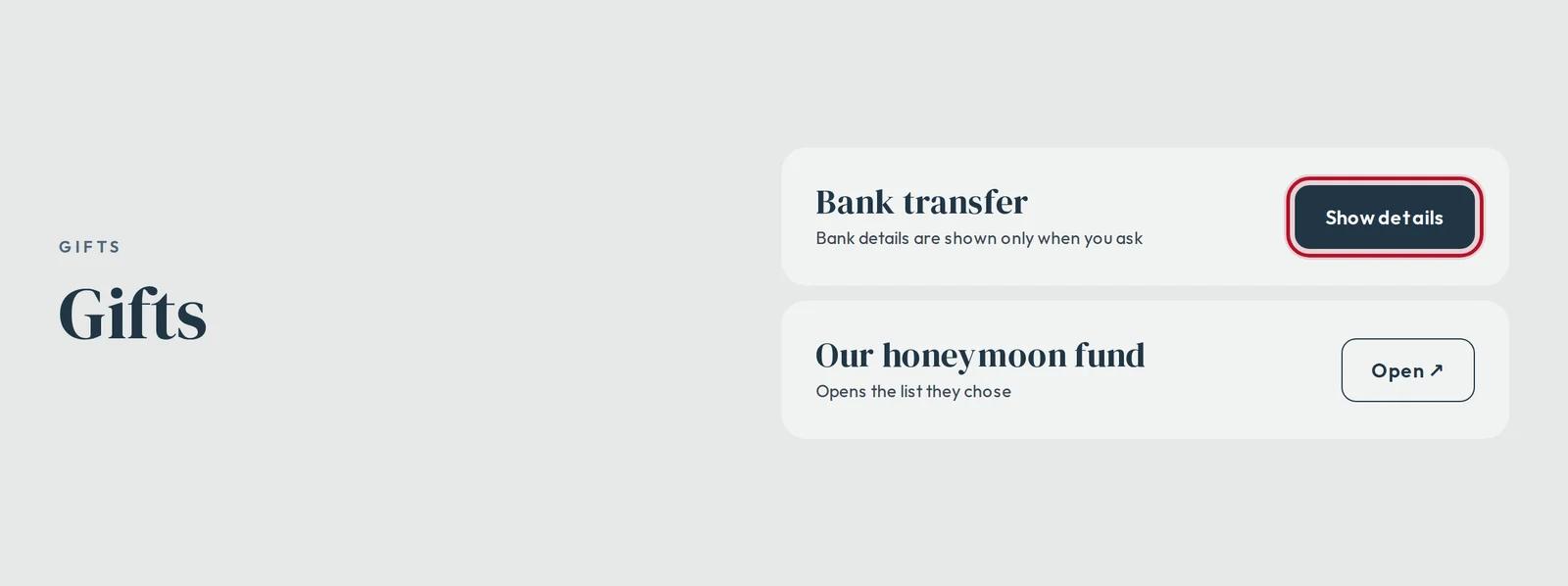
In Gifts, add your bank details under Bank transfer and any wish list or payment page under Wish lists and payment links. Guests see the bank details only after pressing Show details, so Google never reads them. No money passes through Eventadore: guests pay you directly.
7 · Who can see it
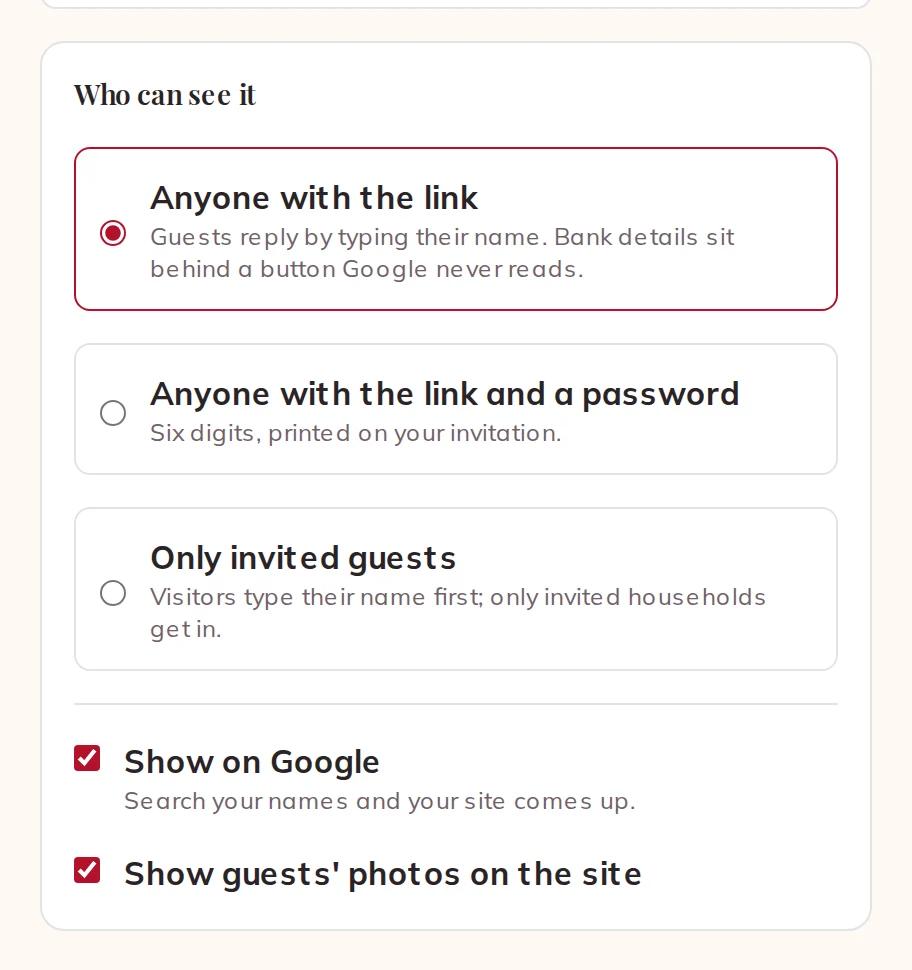
In Privacy, choose one of three:
- Anyone with the link — guests reply by typing their name.
- Anyone with the link and a password — six digits you print on your invitation.
- Only invited guests — visitors type their name first, and only households on your guest list get in.
Show on Google is on from the start, so guests who search your names find you; it applies only to a site anyone with the link can see. Show guests' photos on the site decides whether the photos your guests send appear on your site. Once you have published, Take the site offline is here too.
8 · Publish and share
Press Publish at the top of the editor. If you have no account yet, you create one with a code we email you, your draft moves into it, and the site goes live.
Publishing also translates your texts into the other seven languages. Each guest sees their own language first, marked as translated, with your original one tap away. You can edit as much as you like; when you change something, press Update site — only what changed is translated again. You can publish up to 20 times a day.
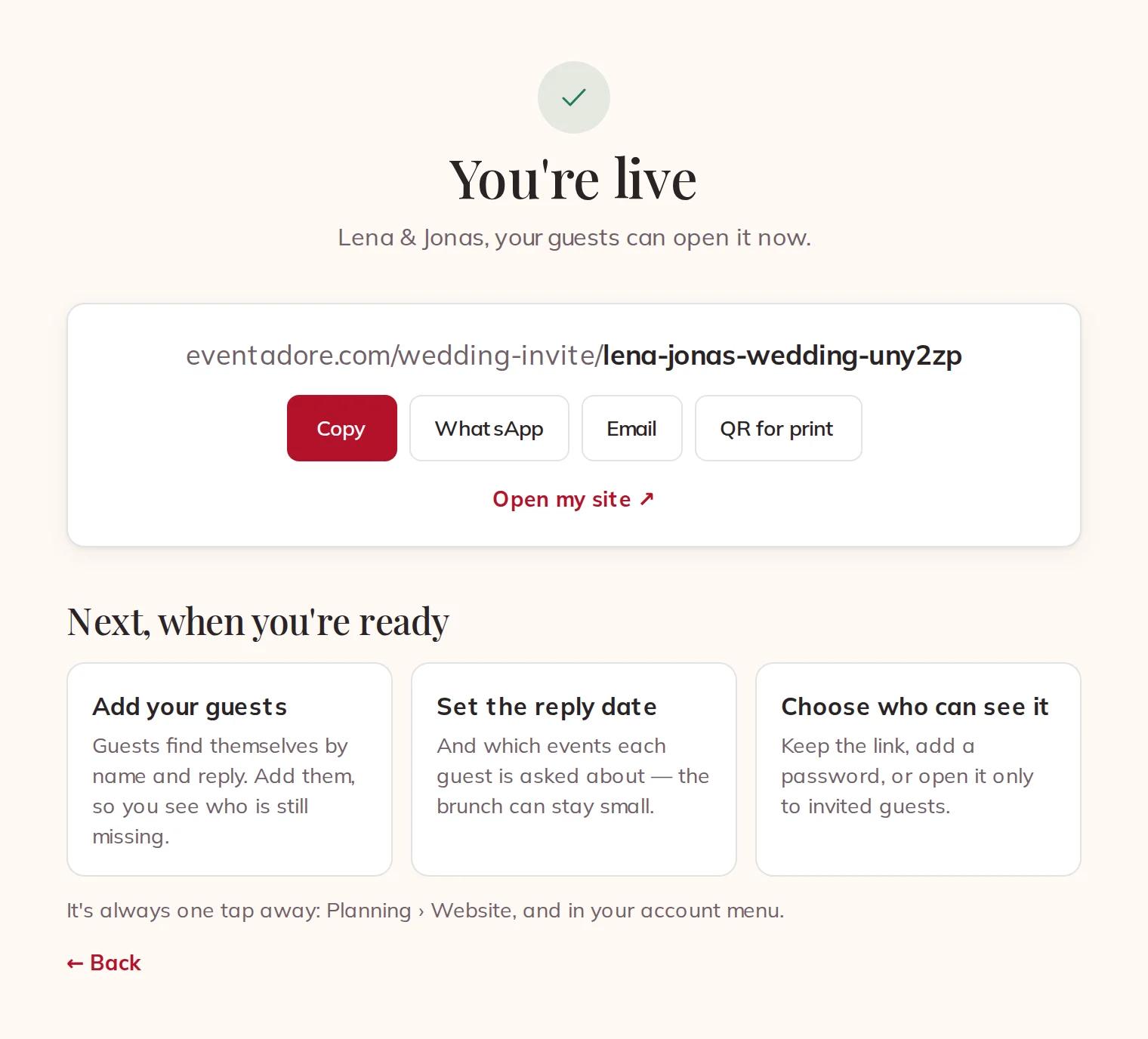
Then You're live: Copy the link, send it by WhatsApp or Email, download a QR for print for your invitations, or press Open my site ↗.
In the phone app, your website is a card in your Planning; Edit opens the same builder inside the app.
9 · What your guests see
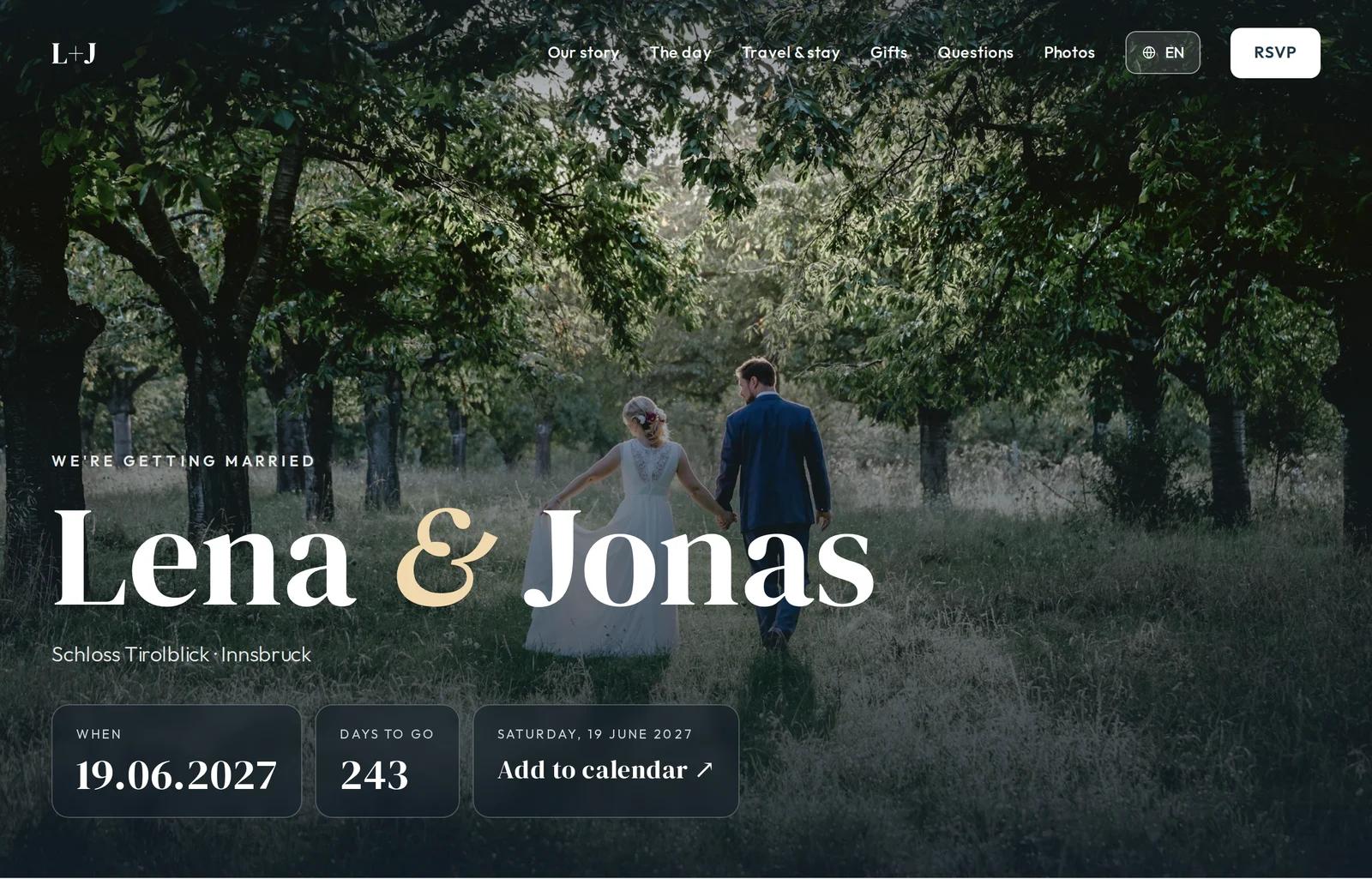
Your guests open the link and see your site in the design you chose, in their own language, with Add to calendar for the day. At the bottom there is a small Eventadore badge.
Bank details stay behind Show details; a wish list opens with one tap.
Your site changes by itself as the day comes closer:
- Save the date — the date, the place and a countdown, until you set a reply date in your guest list.
- The invitation — every section, and replies until your reply date.
- Thank you & photos — after the day, your thank-you first, and guests send their photos from the page with Add your photos.
Your site stays online for two years after the day.
10 · How guests reply
There is one link for everyone, so nobody needs a personal one. A guest presses RSVP, types their first and last name as they are on your guest list — capitals and accents do not matter — and presses Find me. Part of a name finds nothing, so nobody can browse your list.
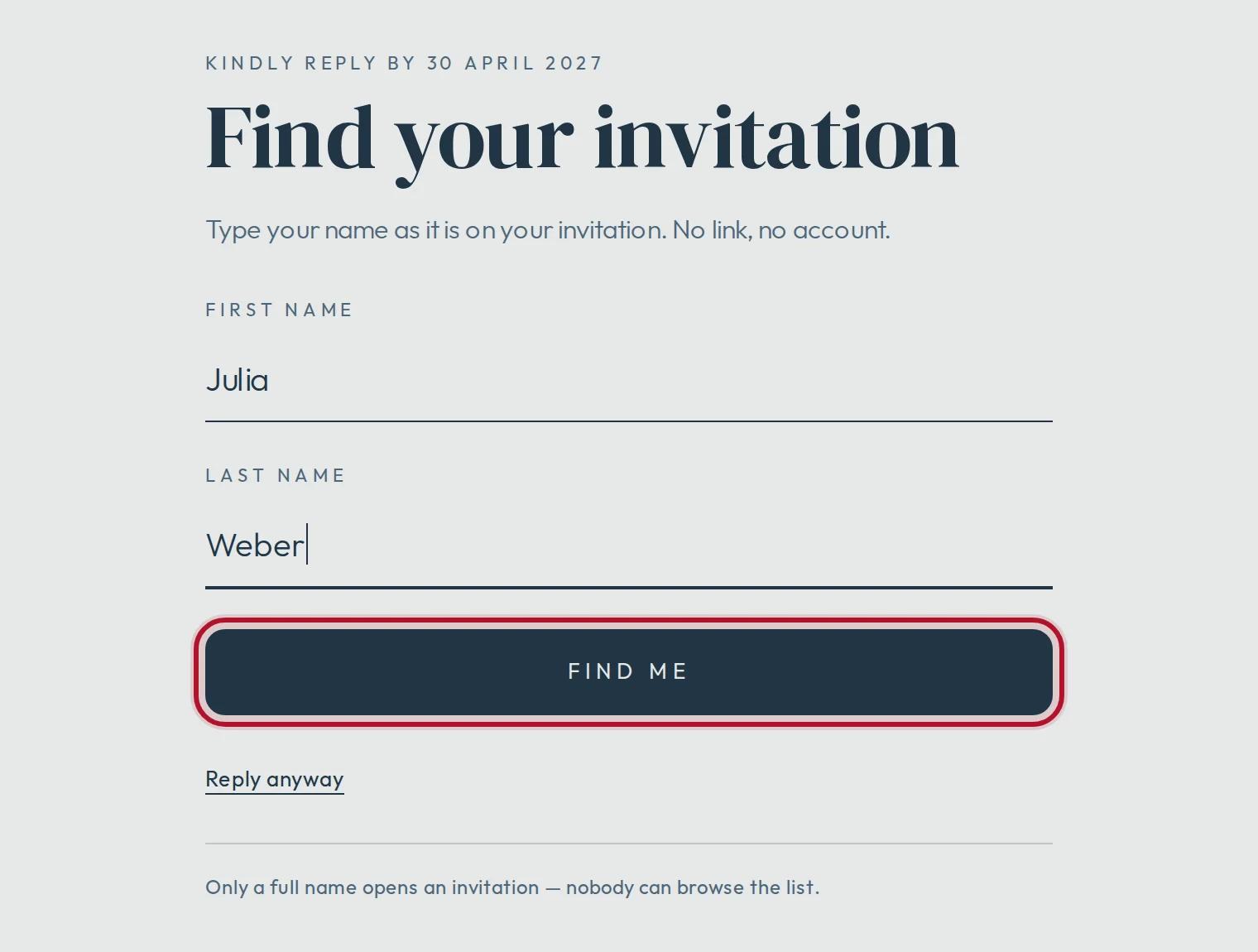
Their household opens: who is coming to which event, food wishes, A song for the dance floor if you asked for one, and a message for you. They press Send reply, and can change it until your reply date.
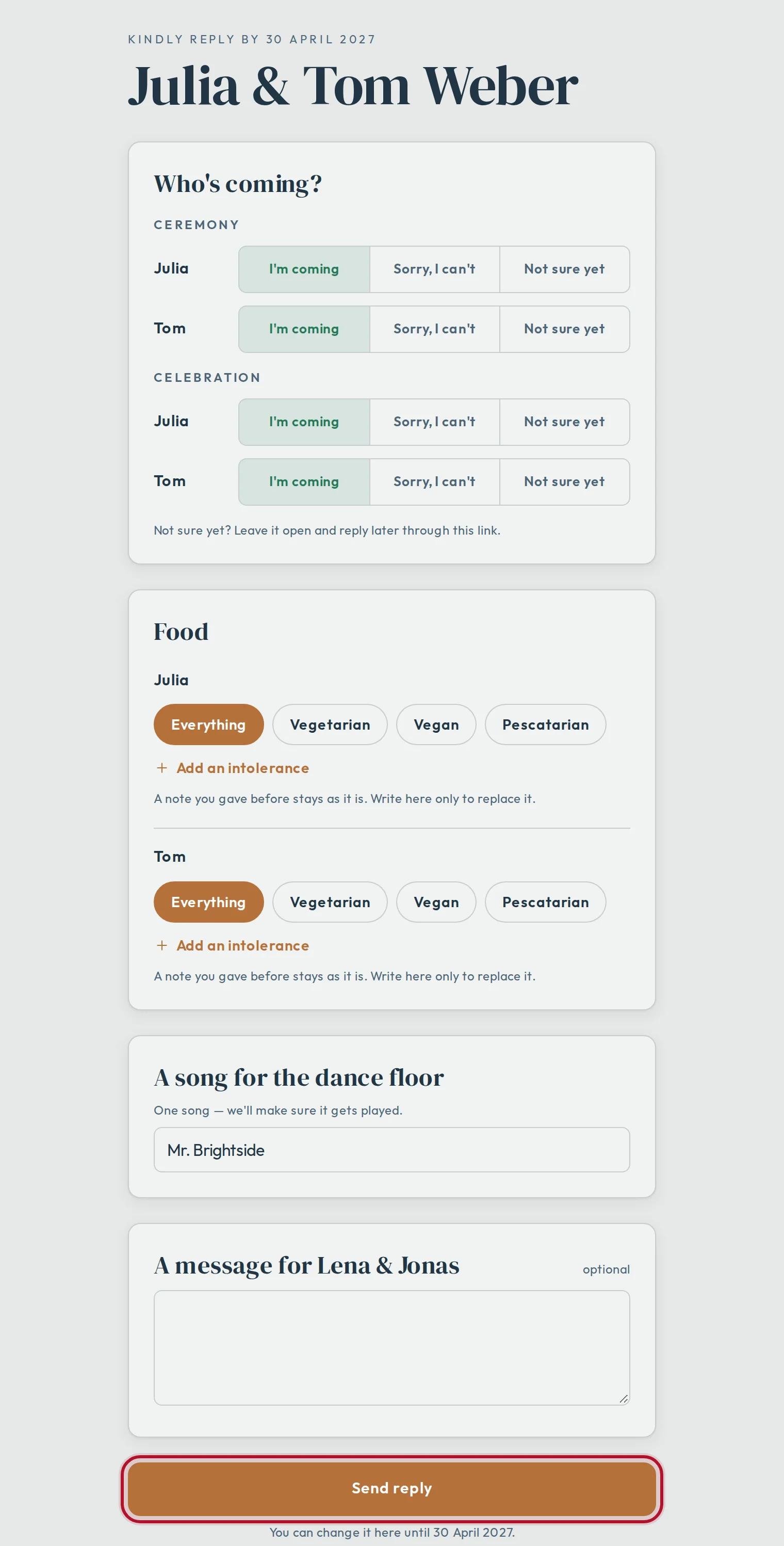
Someone who is not on your list can press Reply anyway. Their reply arrives in your guest list as new, for you to check. Personal links you send from the guest list keep working and open the same site.
11 · Your website in Planning
Your site has its own page in your Planning: Your website. It shows what your guests see right now, the Replies as they come in, Song requests, and who can see the site. Press Edit to go back to the editor.
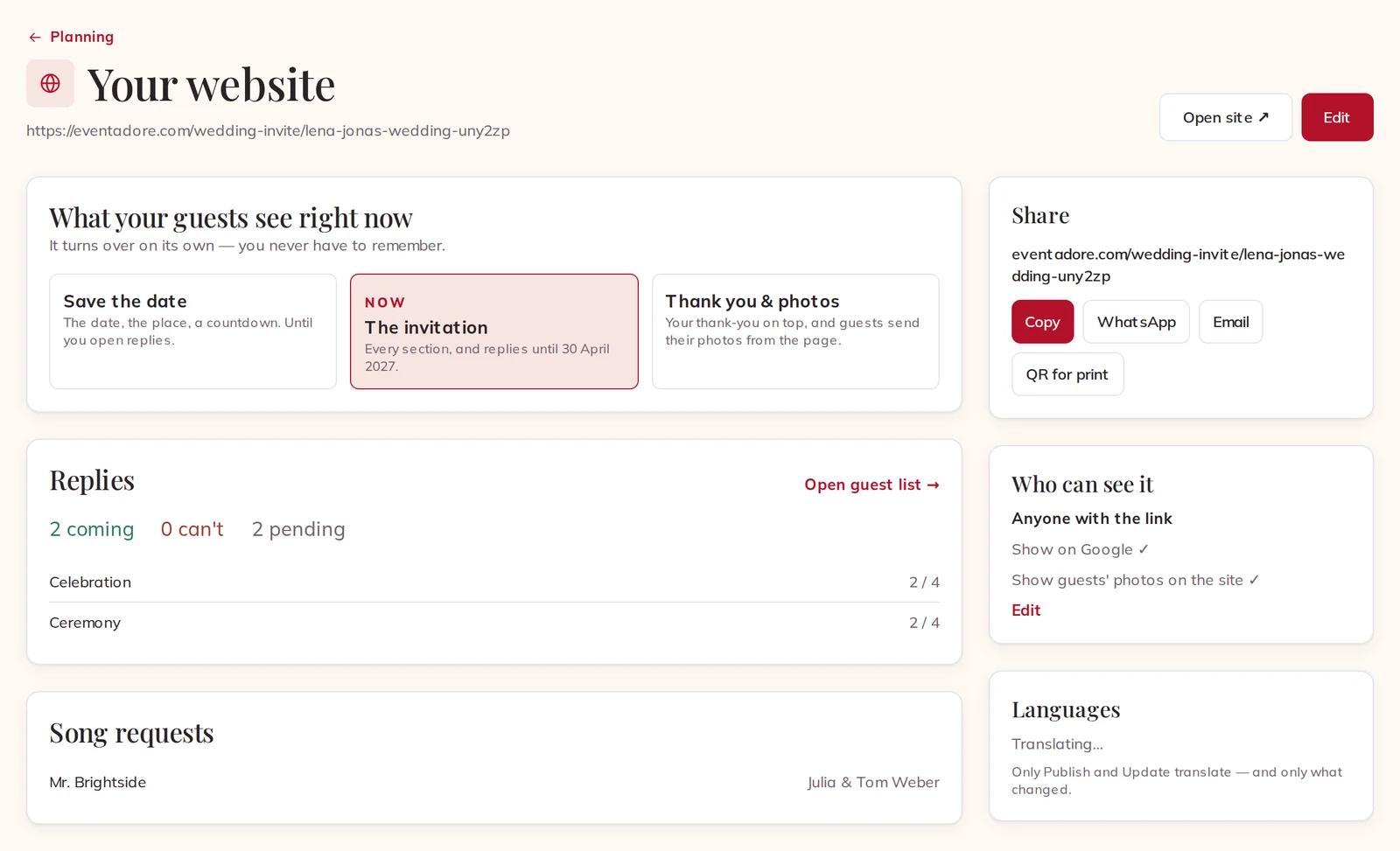
If a guest asks for a photo to come down, it leaves the site at once and appears here under Requests to take a photo down: choose Keep it hidden or Show it again.