The tools for your wedding: checklist, budget, running order and more
Everything for the run-up lives in your Planning: a checklist counted back from your date, a budget that adds up your suppliers, the running order of the day, notes, saved suppliers, and the people planning with you.
The Eventadore team6 min readUpdated 19 October 2026
Your Planning is where your wedding comes together: your date, your guests and the suppliers in your cart. Under them sit your tools. Each one opens on its own page, keeps what you write for both of you on every device, and already knows your date and your suppliers.
1 · Find your tools
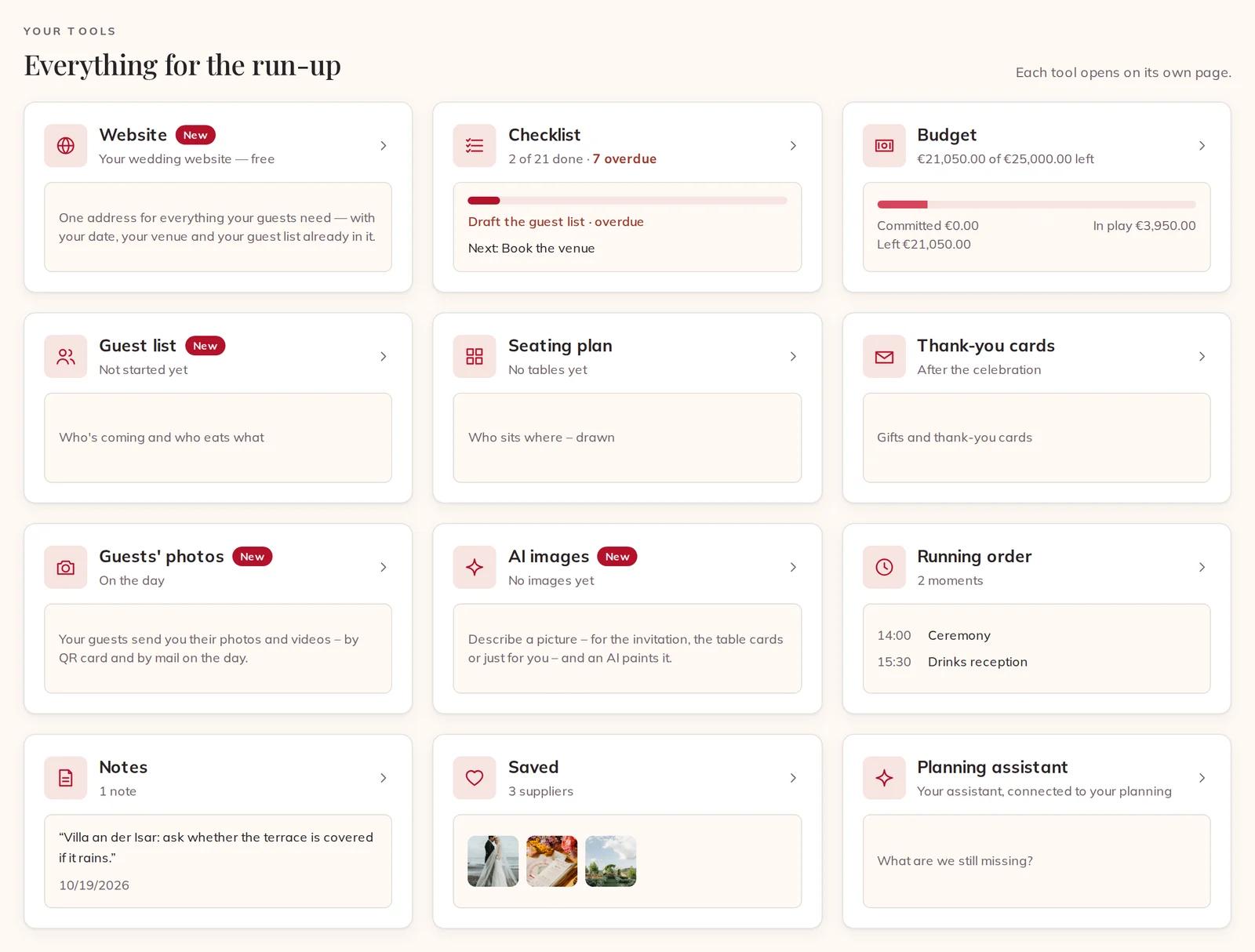
Open Planning and scroll down to Your tools — Everything for the run-up. Each tile shows where that tool stands: how many tasks are done and how many are overdue, how much of your budget is left, the first moments of the day, your latest note and the suppliers you saved.
The tool grid in your Planning, each tile with its state
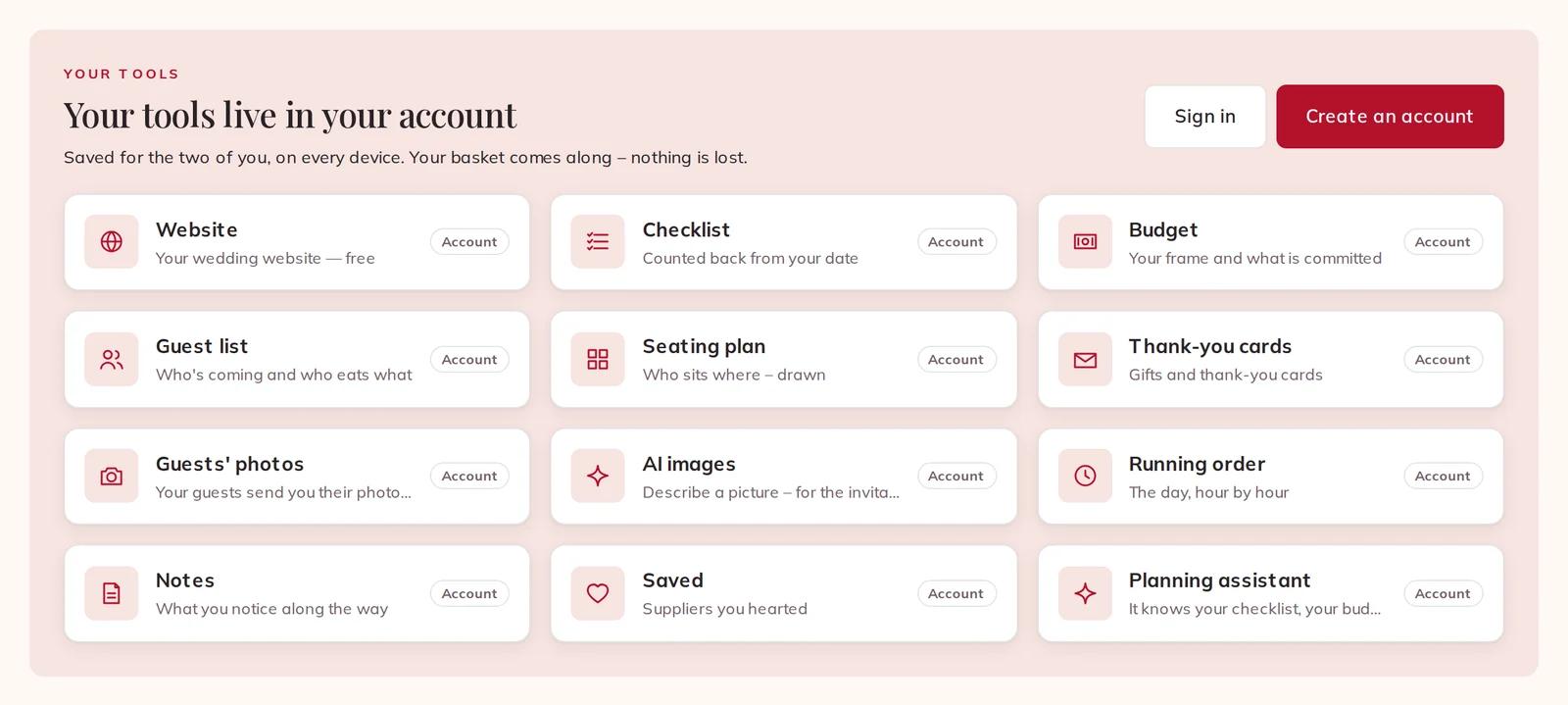
The tools need an account, because they belong to your celebration and to whoever plans it with you. Before you sign in, the same tiles show Your tools live in your account. Press Create an account or Sign in: the suppliers you already put in your cart come with you, nothing is lost.
Signed out: the tools are shown and marked Account
The Checklist is ready the first time you open it: about twenty tasks, each with a date counted back from your wedding day. What is already past shows overdue in red instead of being hidden, so if you start late you see what to catch up on. At the top you see how many are open, overdue and done.
Tick the circle in front of a task when it is done. Done tasks leave the list; press Show done to see them again, struck through, and press the circle again to undo one.
Two tasks ticked, shown with Show done
Many tasks have a Find suppliers button: it opens the search for that kind of supplier, with your date and your number of guests already filled in.
To add something of your own, type it under Your own task, choose a date under by if you like, and press Add.
Adding your own task at the bottom of the checklist
Your own task takes its place in the list by its date. Only your own tasks can be removed: press the cross at the end of the line.
Your own task, with its date and the cross to remove it
3 · Budget
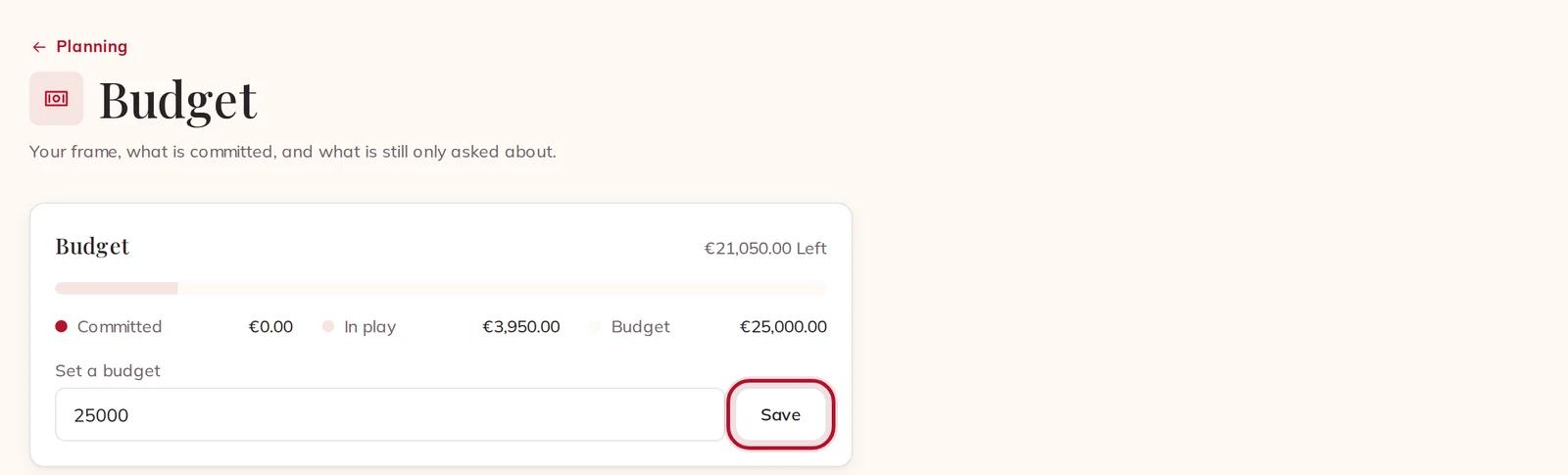
Under Set a budget, type the total you want to spend, in whole euros (or your currency), and press Save. You can change it at any time.
The budget, set, against what the planning already holds
You never type the suppliers' prices: the budget adds them up from your Planning, at the price that was fixed when you added each one.
Committed — suppliers you have booked.
In play — suppliers still in your cart or waiting for an answer: not spent yet, and you can still let them go.
Left — your budget minus both. When the two together are more than your budget, the card says Over budget.
4 · Running order
The Running order is your day hour by hour. Choose the Time, write what happens under Add item, and press Add. The moments line up by time, and the cross at the end of a line removes it.
The running order with two moments, and the button that asks the assistant to draft it
Don't want to start from a blank page? Press Draft our running order: the planning assistant writes a first version straight into your running order, and you change it from there.
5 · Notes
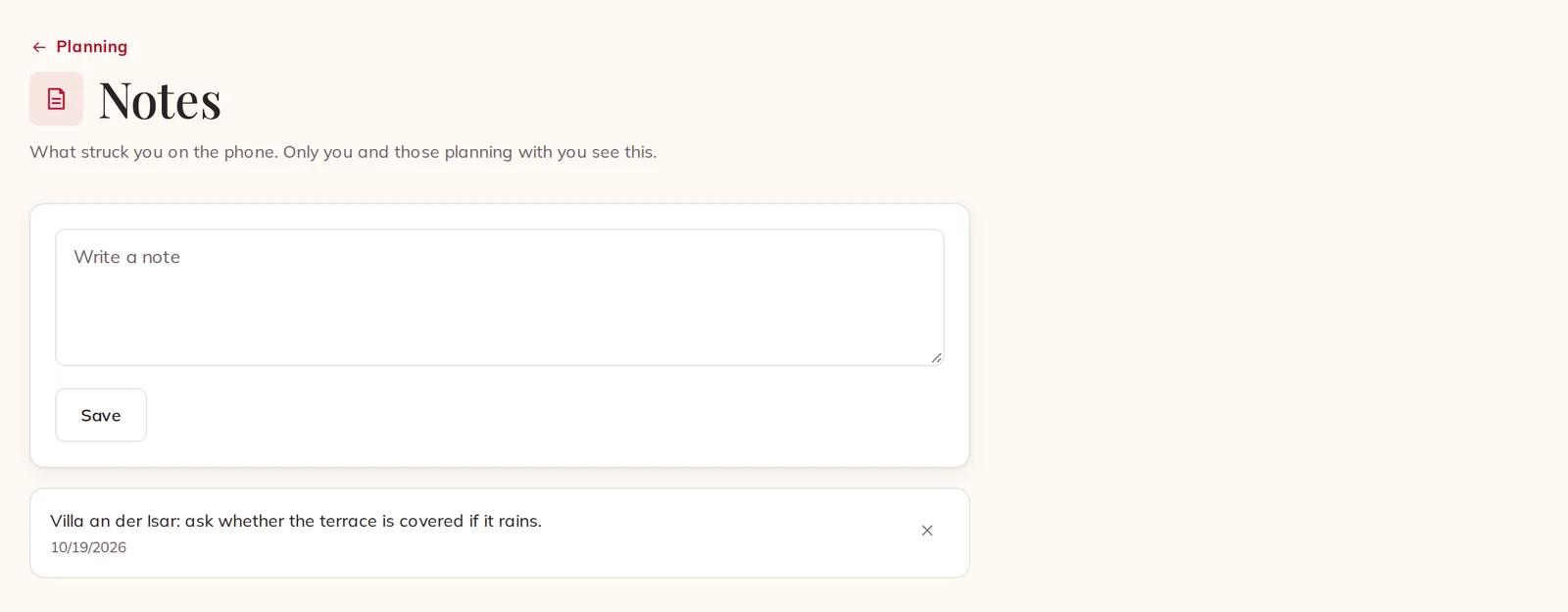
Notes are for what you notice along the way — something a venue said on the phone, a question for the next visit. Type under Write a note and press Save. Your newest note comes first, with its date. Only you and the people planning with you see your notes; suppliers never do.
A note saved on the Notes page
6 · Saved suppliers
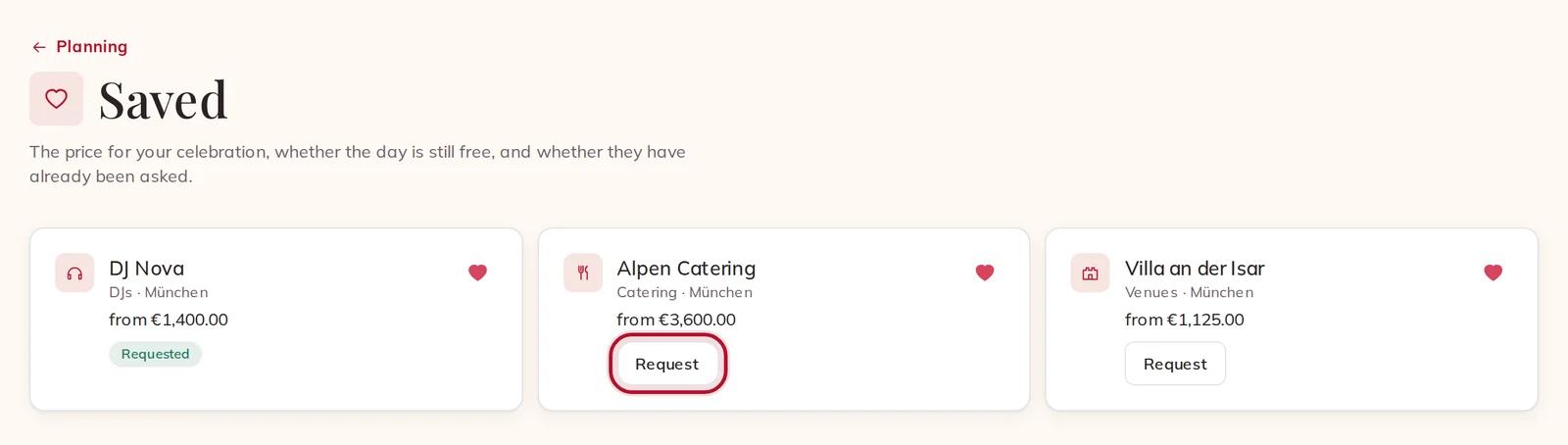
Press Save (the heart) on a supplier's profile or on a card in the search, and they land in Saved. Each card shows what they cost for your day and your number of guests, Taken on your day if the day is no longer free, and Requested if they are already in your Planning.
Saved suppliers with their price for your day
Request opens their profile, where you add them to your cart. Saving is not asking: a supplier hears nothing from you until you book or write to them. Press the heart on a card to take them off the list.
7 · Planning together
Your partner, your best man or your mother can plan with you. At the top of your Planning, press Invite co-planners.
The Invite co-planners button at the top of your Planning
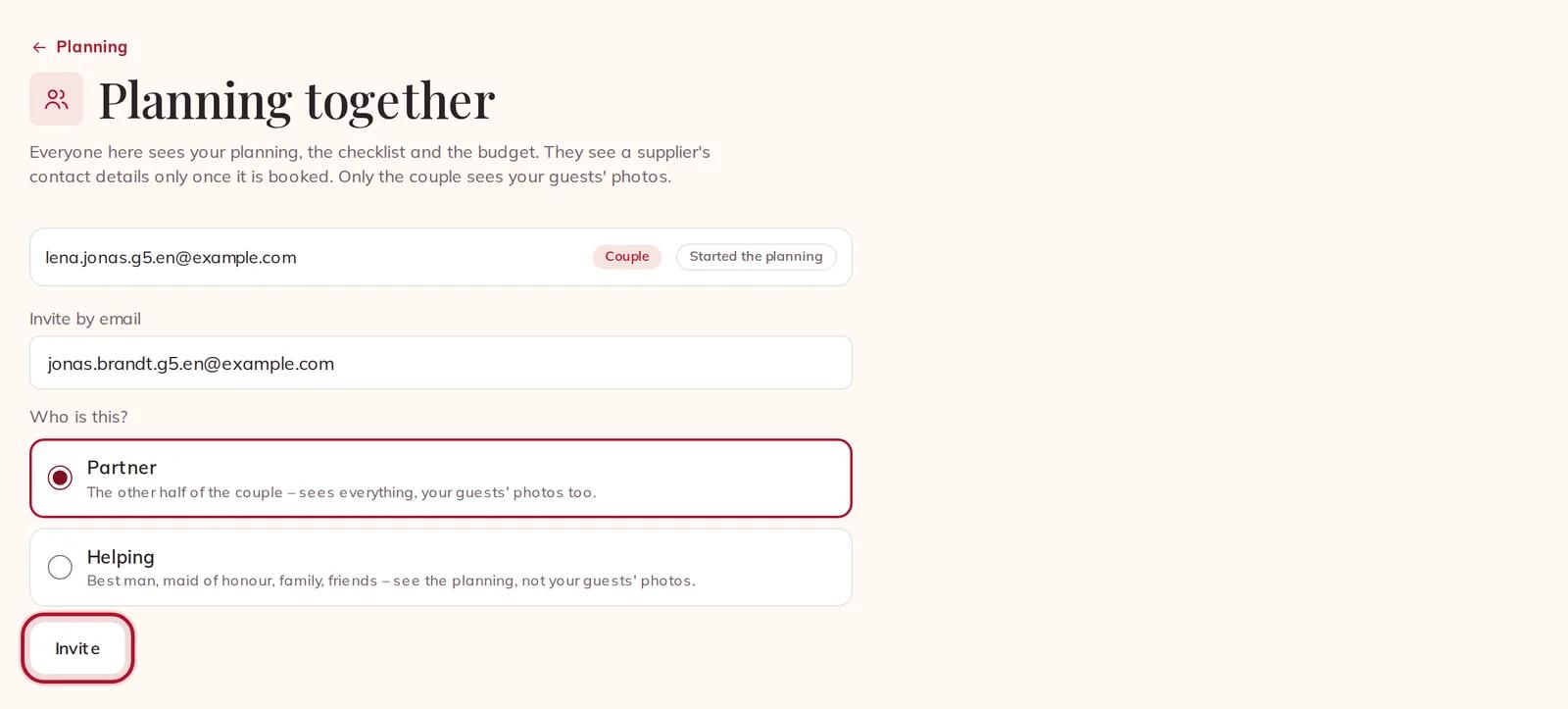
Type their address under Invite by email and answer Who is this?:
Partner — the other half of the couple. Sees everything, your guests' photos too. A couple is two, so once you have a partner, everyone else you invite is helping.
Helping — family and friends. They see the planning, the checklist and the budget, but not your guests' photos.
Press Invite.
Inviting your partner by email
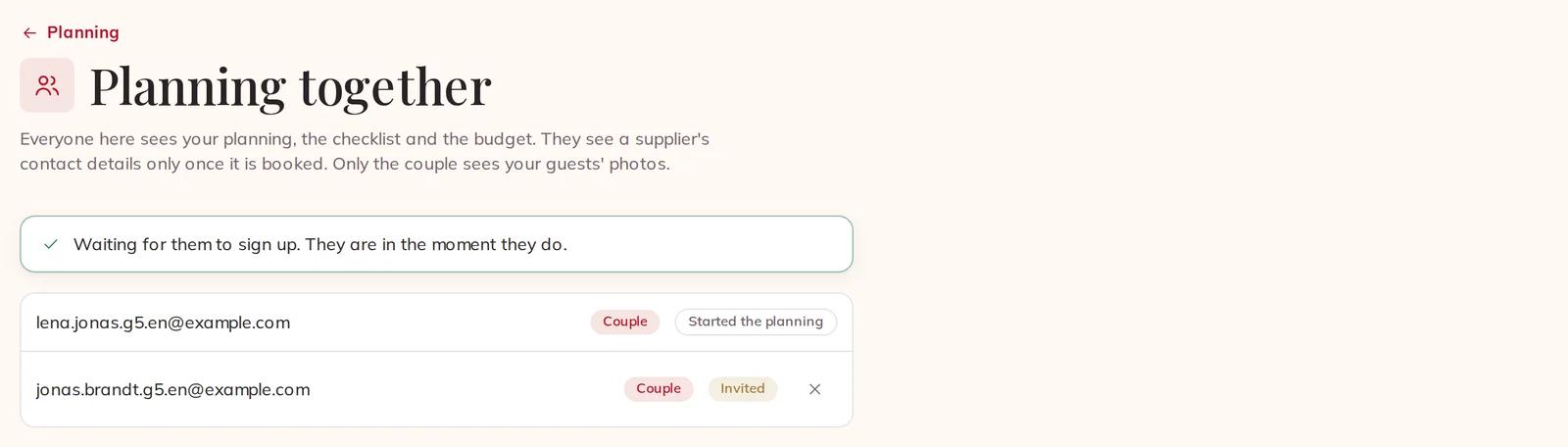
We do not send them an email, so tell them yourself. Until they create their account with that same address, they show as Invited; the moment they do, they are in. If they already have an account with that address, they are in straight away. Everyone sees a supplier's contact details only once that supplier is booked.
Your partner, invited and waiting to sign up
To take somebody off, press the cross next to their address. The person who started the planning cannot be removed, and only the couple can remove one of the couple.
The other tools
These have guides of their own:
Website — your wedding website, free, with your date and your venue already in it.
Guest list — who is coming and who eats what.
Seating plan — who sits where, drawn table by table.
Thank-you cards — gifts and thank-you cards, after the celebration.
Guests' photos — your guests send you their photos and videos on the day. Only the couple sees this tile.
AI images — describe a picture for the invitation or the table cards, and an AI paints it.
Planning assistant — knows your checklist, your budget and your running order, and writes straight into your Planning.
On the phone
The Eventadore app shows the same tiles in the same order under Planning, and everything you do there is on the web too. To invite somebody from the phone, open Account and press Planning together: it opens the same page on the web.