Improving your profile: photos, story, price and conditions
What couples see before they book you, and where you change it in your partner area — photos, videos, your story, your answers, your price and the conditions that make up a day's total.
The Eventadore team7 min readUpdated 19 October 2026
Your profile is live from the day you register. This guide is for the work after that: the photos, words and prices that make a couple who finds you add you to their planning.
Everything here is in your partner area, and every change shows on your profile as soon as you save it.
1 · See how you are sorted
Open your partner area. Your visibility shows how your place in the search comes about: Reviews, Response time, Acceptance rate, Calendar upkeep and Profile completeness, each with its weight and what improves it.
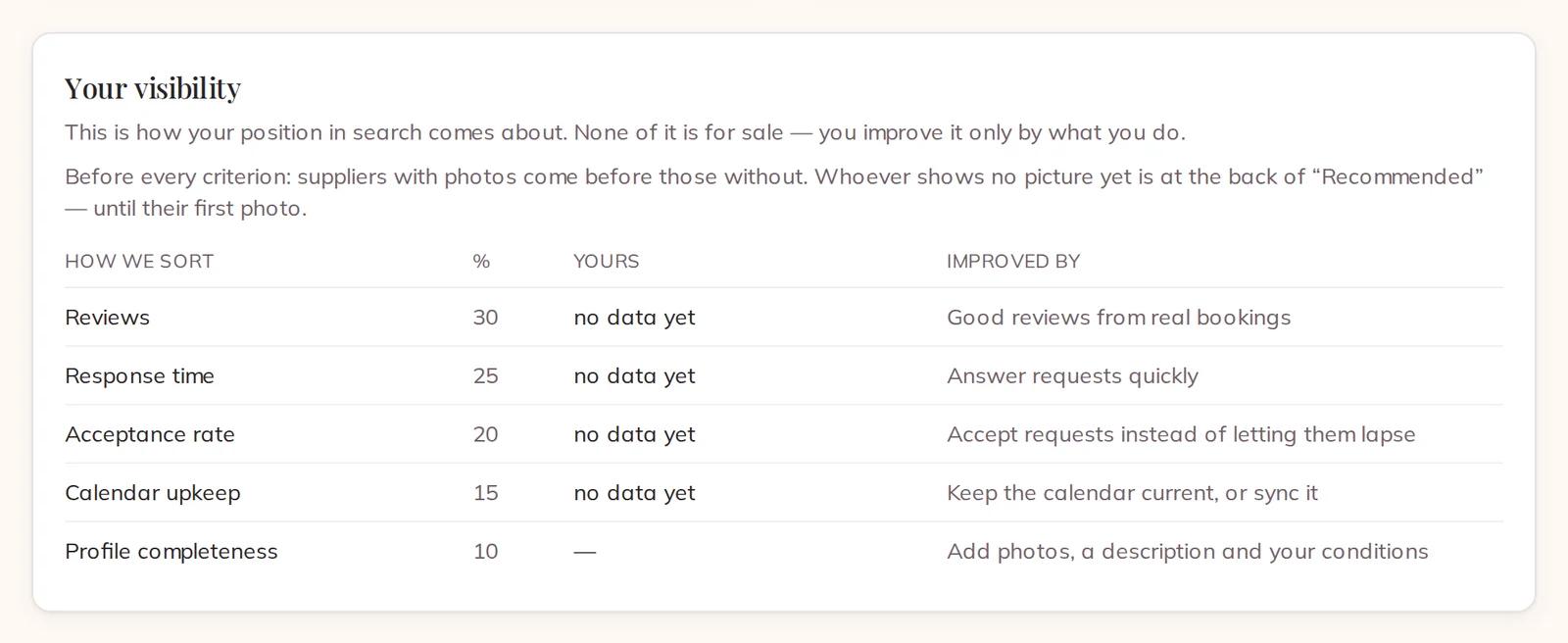
None of it is for sale. Before every criterion, suppliers with a photo come before those without one in Recommended. You are always in the search, photo or not — a photo decides how far up.
2 · Add your photos
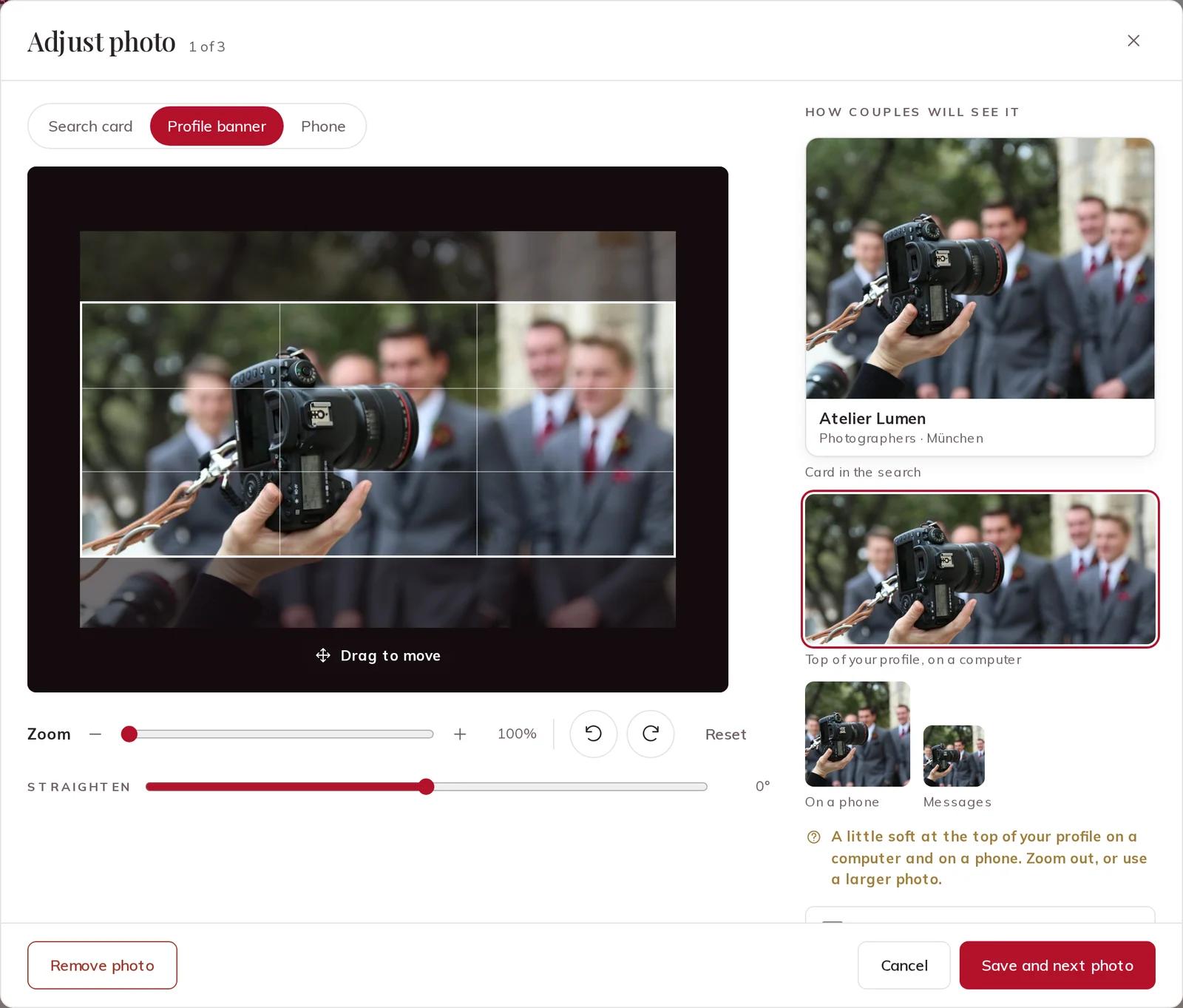
Open Profile & photos. Drop several photos on Drag your photos here, or press Add more photos. Each one opens Adjust photo: frame it once for the Search card, the Profile banner and the Phone, with Zoom, the two turn buttons and Straighten. On the right you see the photo as couples will. Save and next photo takes you through the rest.
3 · Choose your cover
Your first photo is your Cover — the face of your business on every card in the search and at the top of your profile. Drag the photos into the order you want, or press Make cover on the one that shows you best. Adjust opens the framing again at any time.
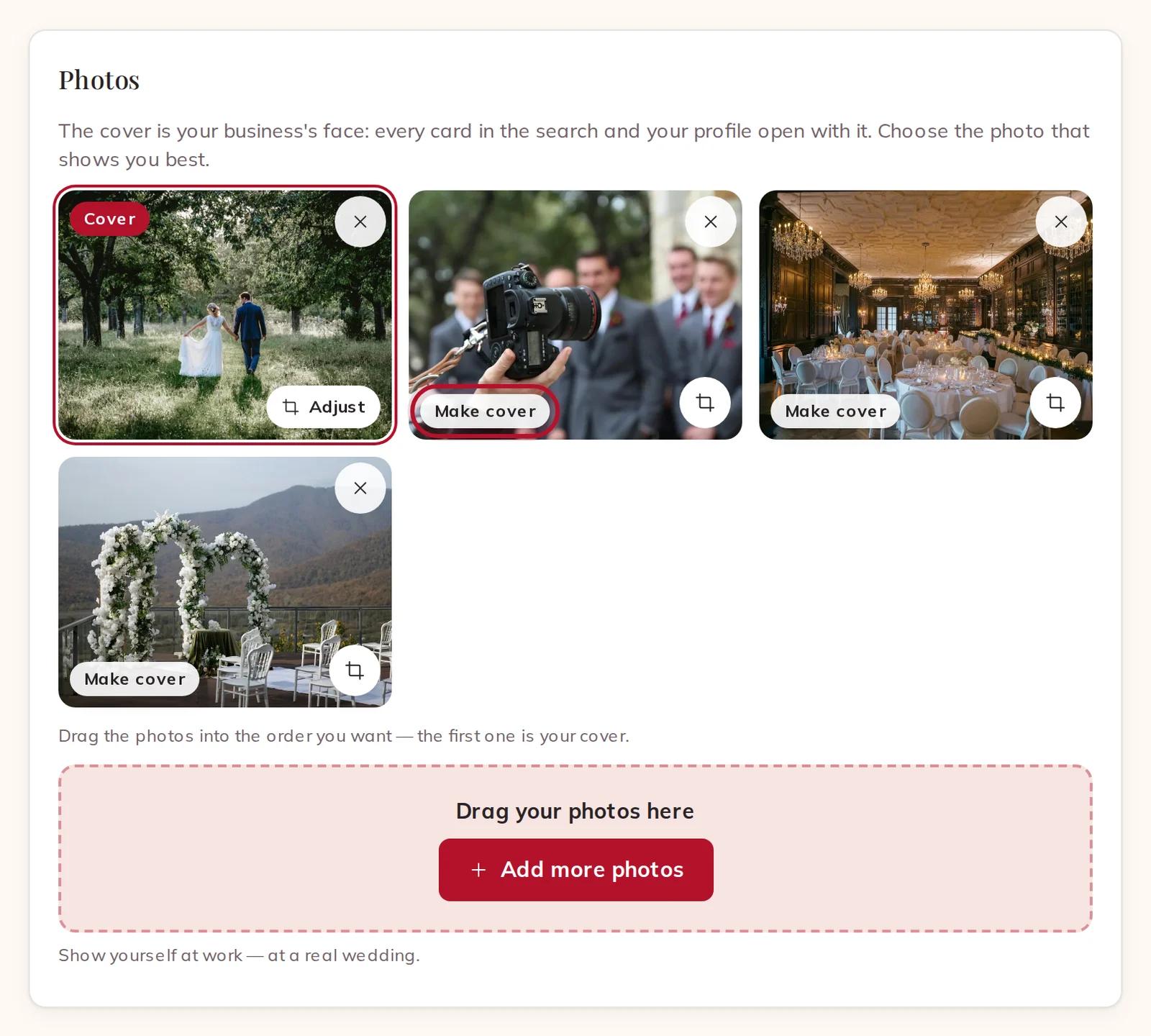
Show yourself at work, at a real wedding. A few strong photos do more than many similar ones.
4 · Add a video
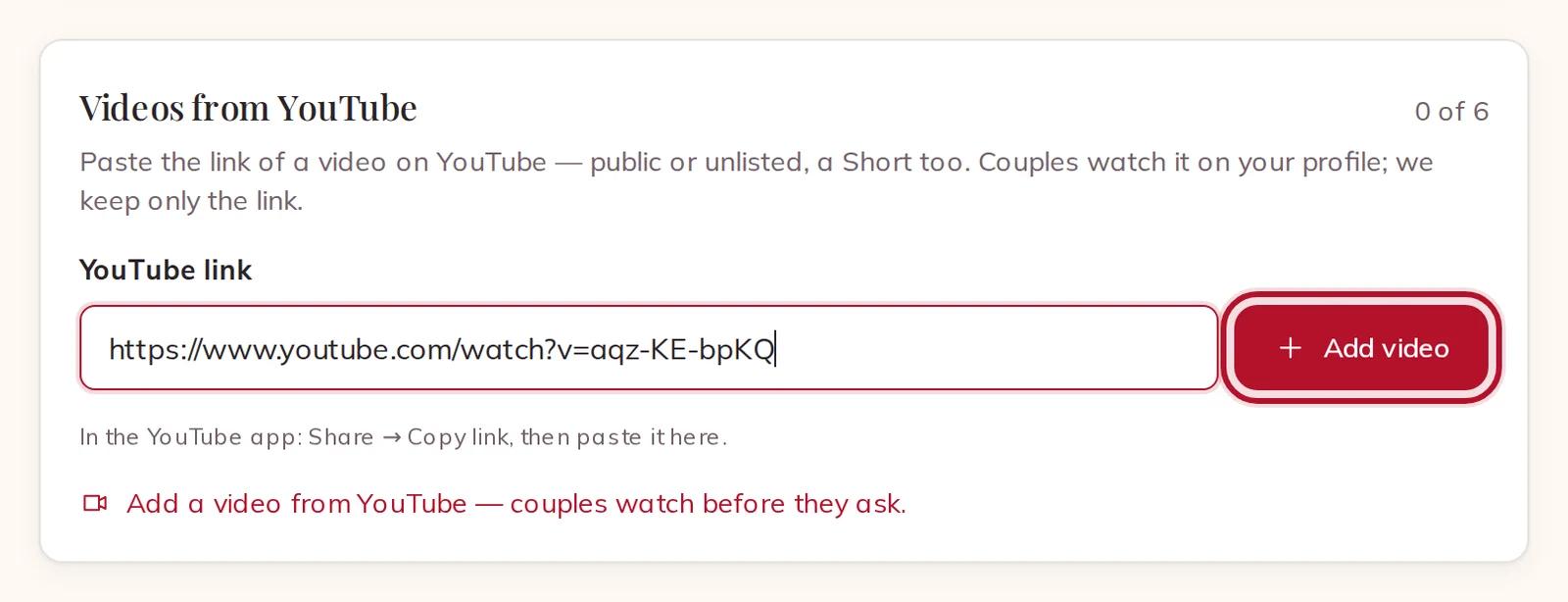
Under Videos from YouTube, paste the link of a public or unlisted video in YouTube link and press Add video — up to six. We keep only the link; the film stays on YouTube. Nothing from YouTube loads on your profile until a couple presses play.
DJs, bands and musicians also get Music from Spotify: a track, an album, a playlist or your artist page, up to five.
5 · Write your story once
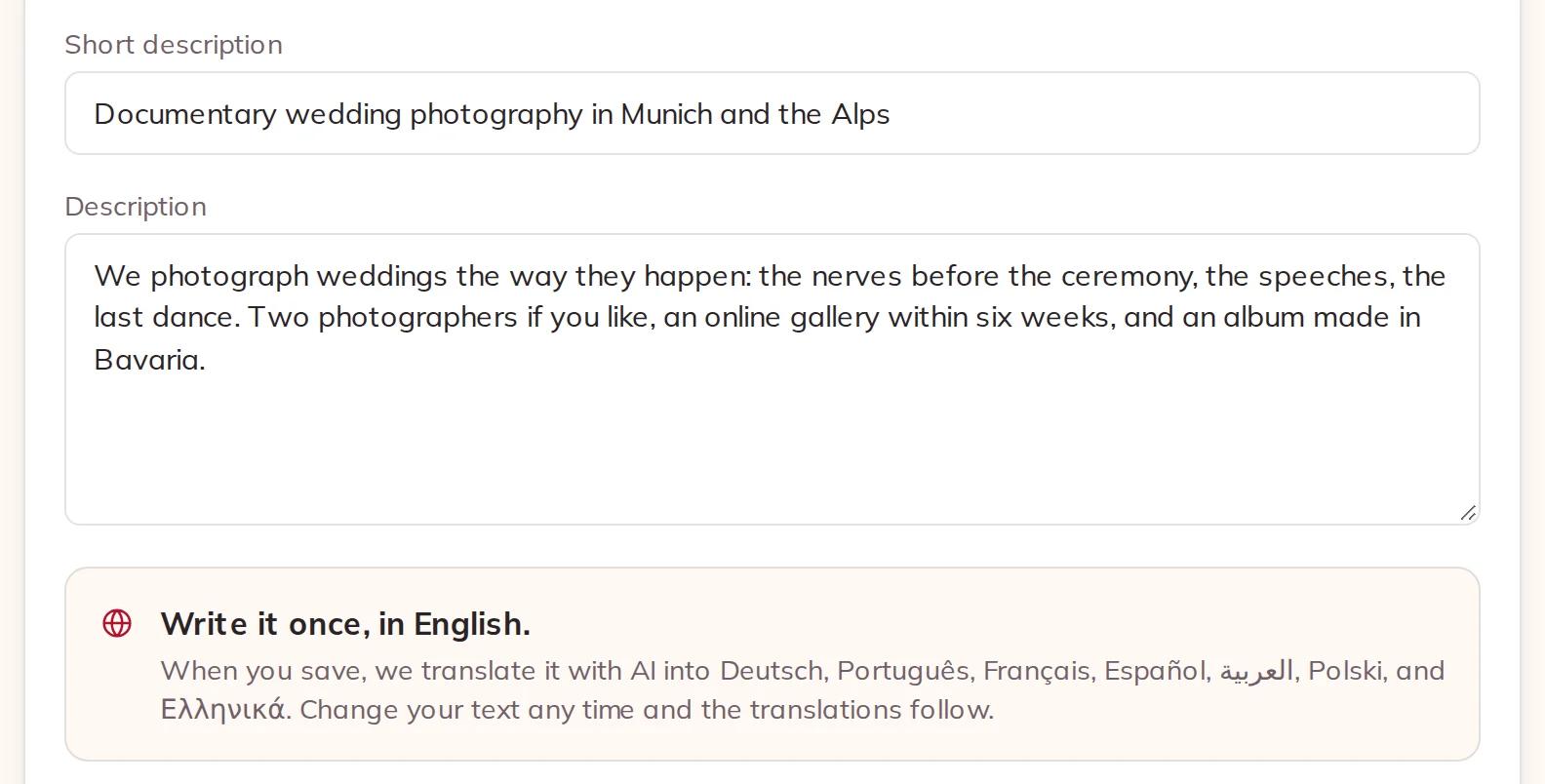
Further down, the Short description is one line under your name on every card. The Description is the story on your profile: how you work, what a couple gets, what makes you different.
Write both once, in the language of the page. When you press Save, they are translated by AI into the other seven languages. Couples see that a text was translated and can press Show original to read your own words. Change your text later and the translations follow.
6 · Answer what couples decide on
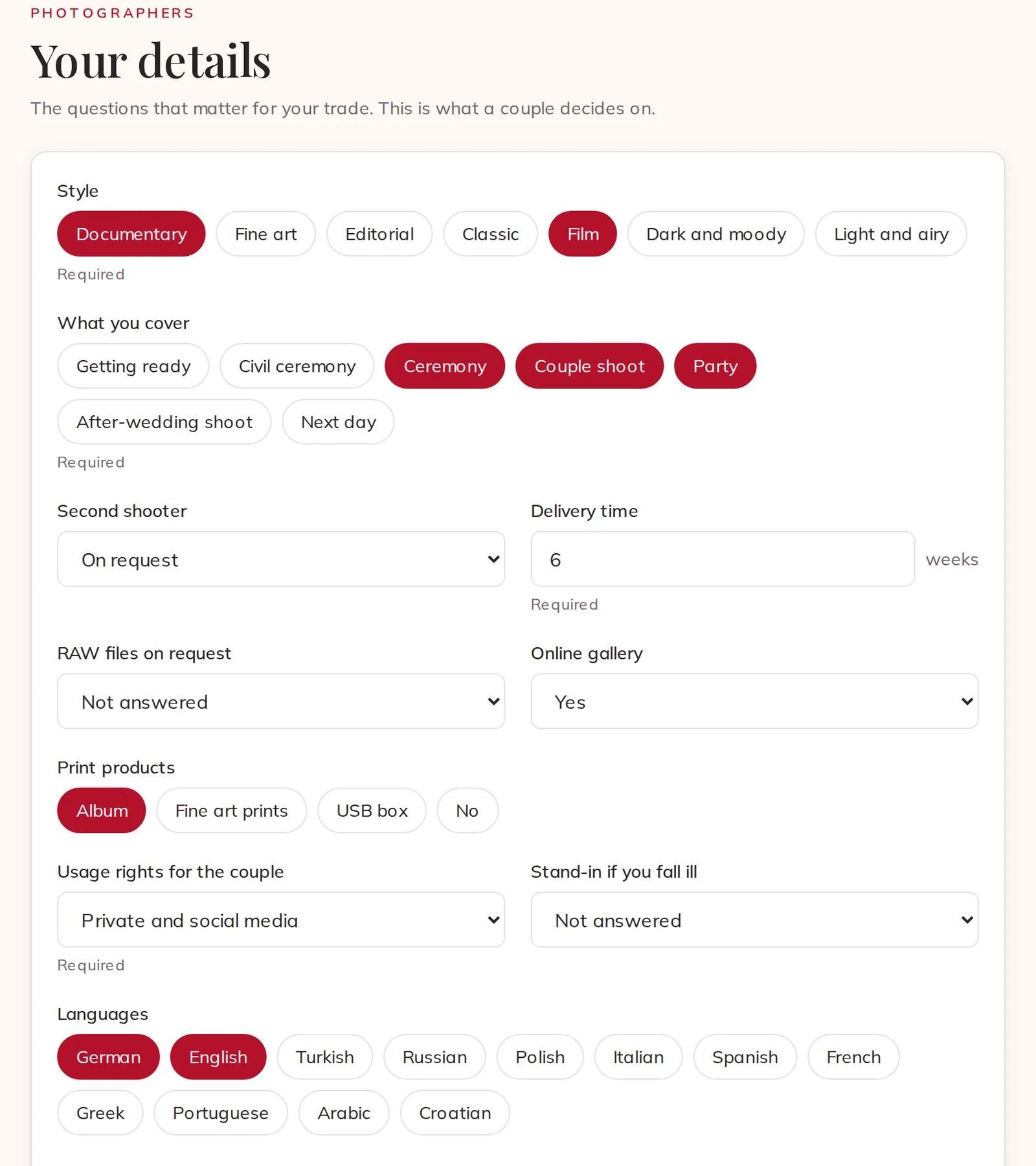
Open Details. Your details are the questions for your trade — for a photographer the style, what you cover, delivery time, languages. The answers go at the top of your profile, and answers such as your style and your languages are search filters: a couple who filters by them finds you.
Below them, under payment: What you accept, how your invoices show VAT, and Your payment terms in your own words. Couples pay Eventadore only the booking fee; your share they pay to you directly.
7 · Keep your price true
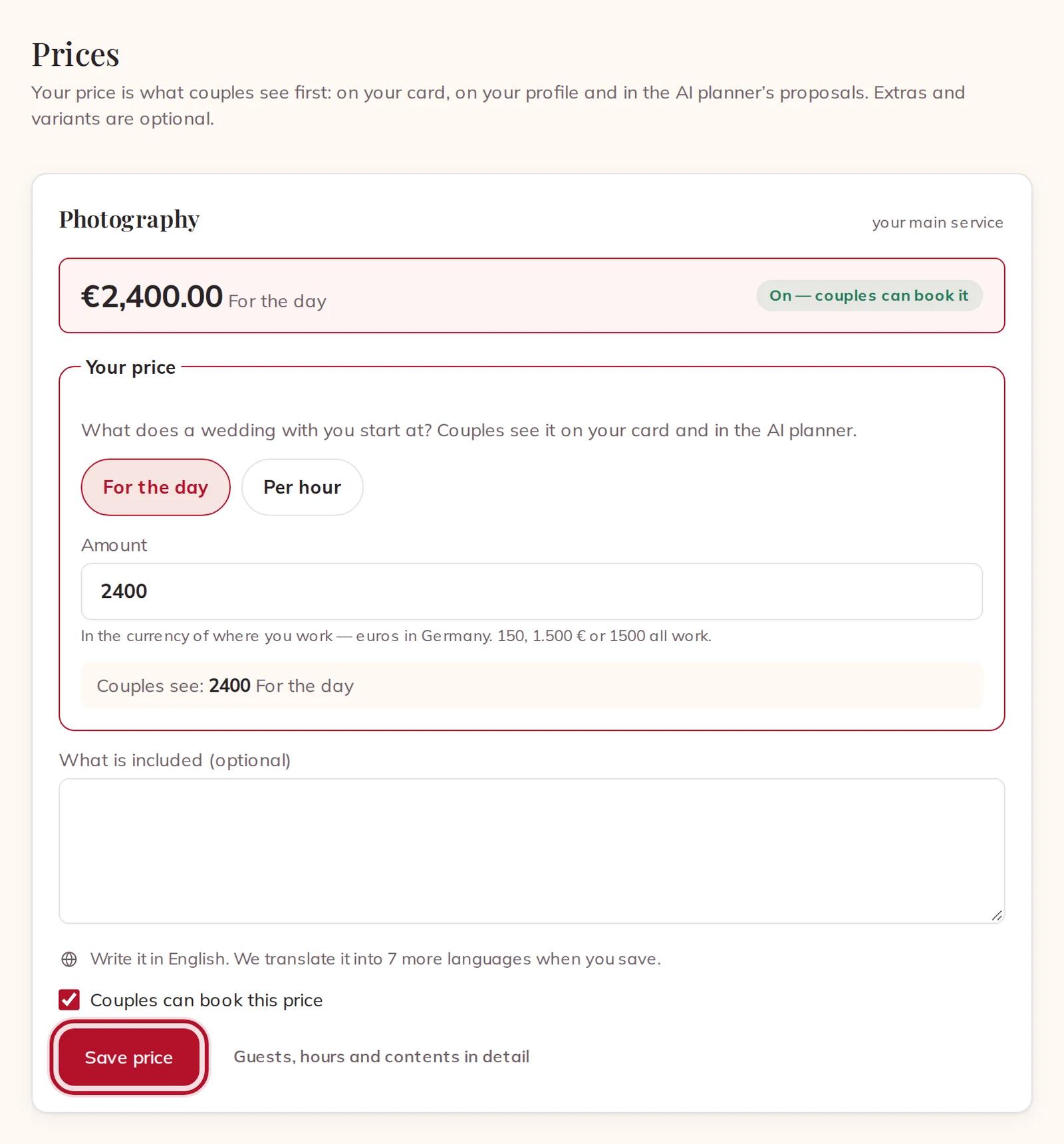
Open Prices & services. The price of your service is what stands for you everywhere: on your card, at the top of your profile and in the AI planner's proposals. Change the amount or how it is charged, and press Save price. While Couples can book this price is ticked, couples can add you to their planning.
8 · Add a variant, if you sell more than one version
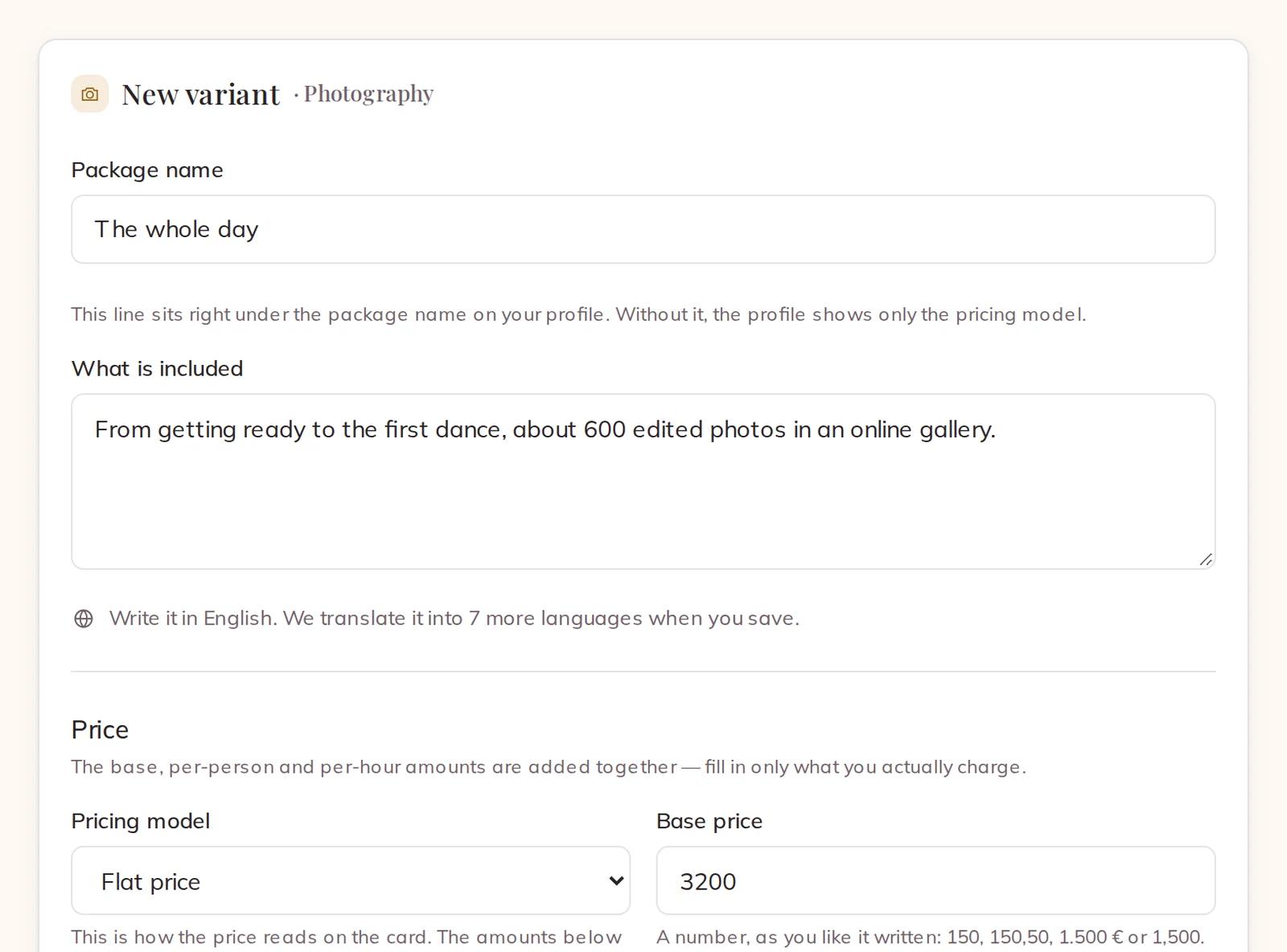
Most suppliers need none. If you do sell a second version — the whole day as well as the ceremony and party, say — go to Variants — only if you sell more than one version. A button under Quick start fills the form with your trade's usual steps; you type the price. Give it a Package name, write What is included, choose the Pricing model and the Base price, answer the questions about the package and press Save.
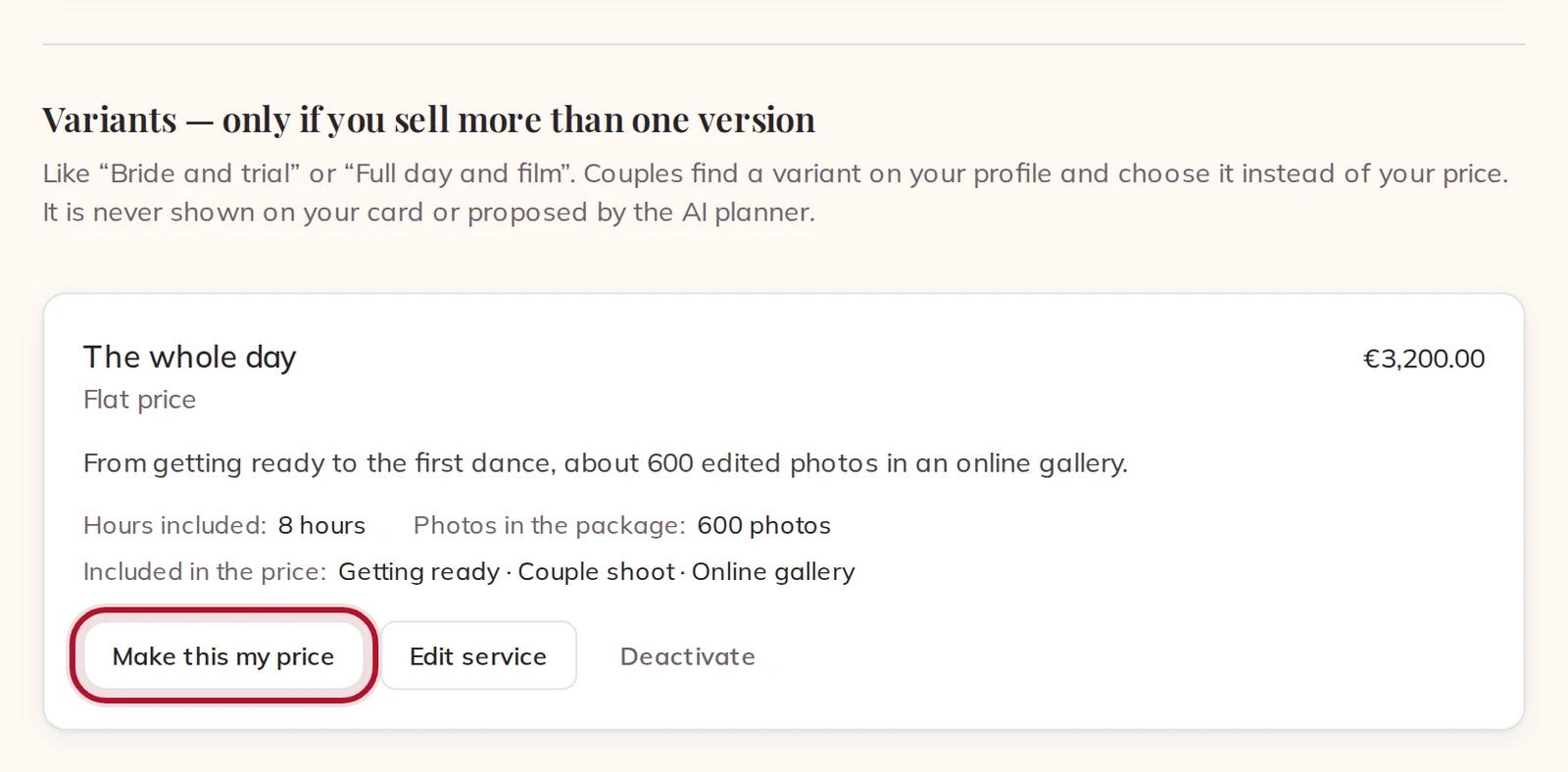
Couples find a variant on your profile and choose it instead of your price; it is never on your card or proposed by the AI planner. If a variant should be what stands for you, press Make this my price. Your old price stays on your profile as a variant, and carts and bookings already made keep what they have.
On the same page, Add-ons are extras couples add beside one of your packages, such as an album or a second photographer — New add-on, a name and a price, Create add-on. An add-on is only ever booked with a package and never shows on your card. Services you offer adds a second service to your profile; each service gets its own price card at the top of the page.
9 · Set your conditions
Open Conditions. These are added to the price of every package on their own, so a couple always sees one total for their day:
- How far do you travel? — the distance you go to couples.
- What does travel cost? — Per kilometre, with how far is Included up to and what you charge Then per km, or Included in my price.
- Overnight allowance — a flat fee from a distance you choose.
- Overtime — hours included and the price of each further hour.
- Minimum spend — the least a booking with you costs.
- Your own deposit — a percentage, paid to you before the date. It is not the Eventadore booking fee.
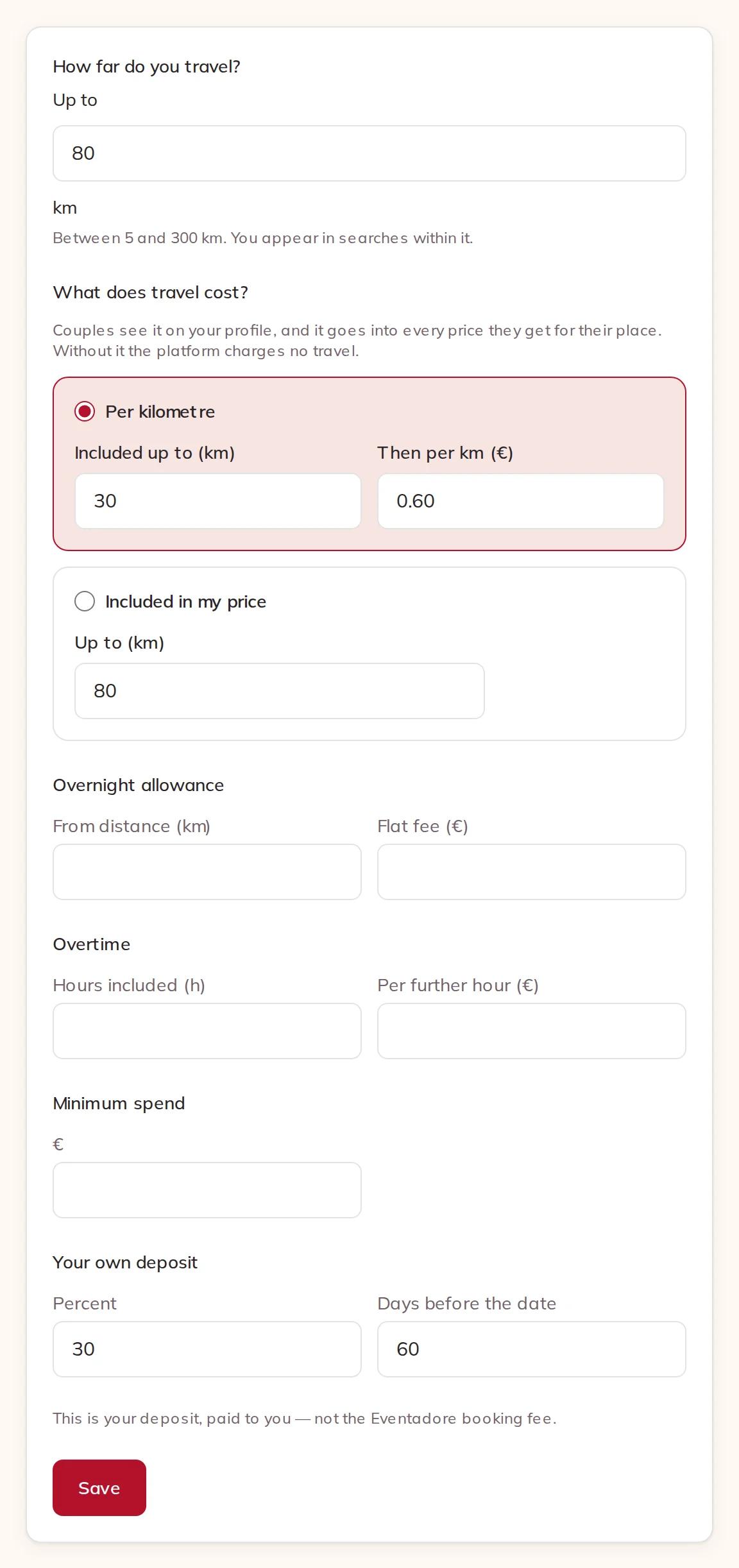
Travel and these charges are one line per booking, never one per package. Under Weddings abroad you decide what changes when the wedding is in another country.
10 · Add a surcharge for busy days
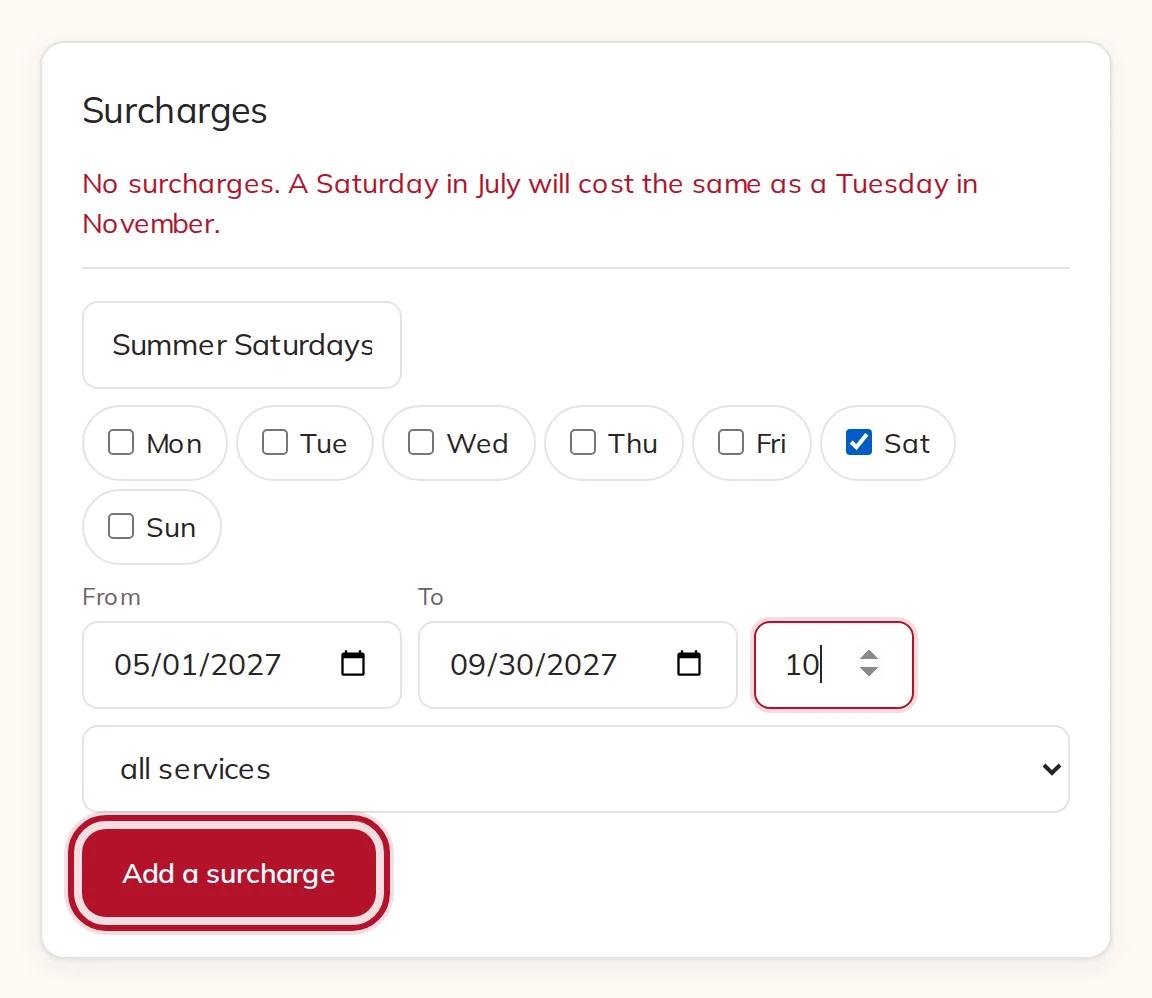
Under Surcharges, give it a name, tick the days of the week, set the dates from and to and the percentage, and press Add a surcharge. It applies to every service, or to the one you choose.
11 · Check the price a couple pays
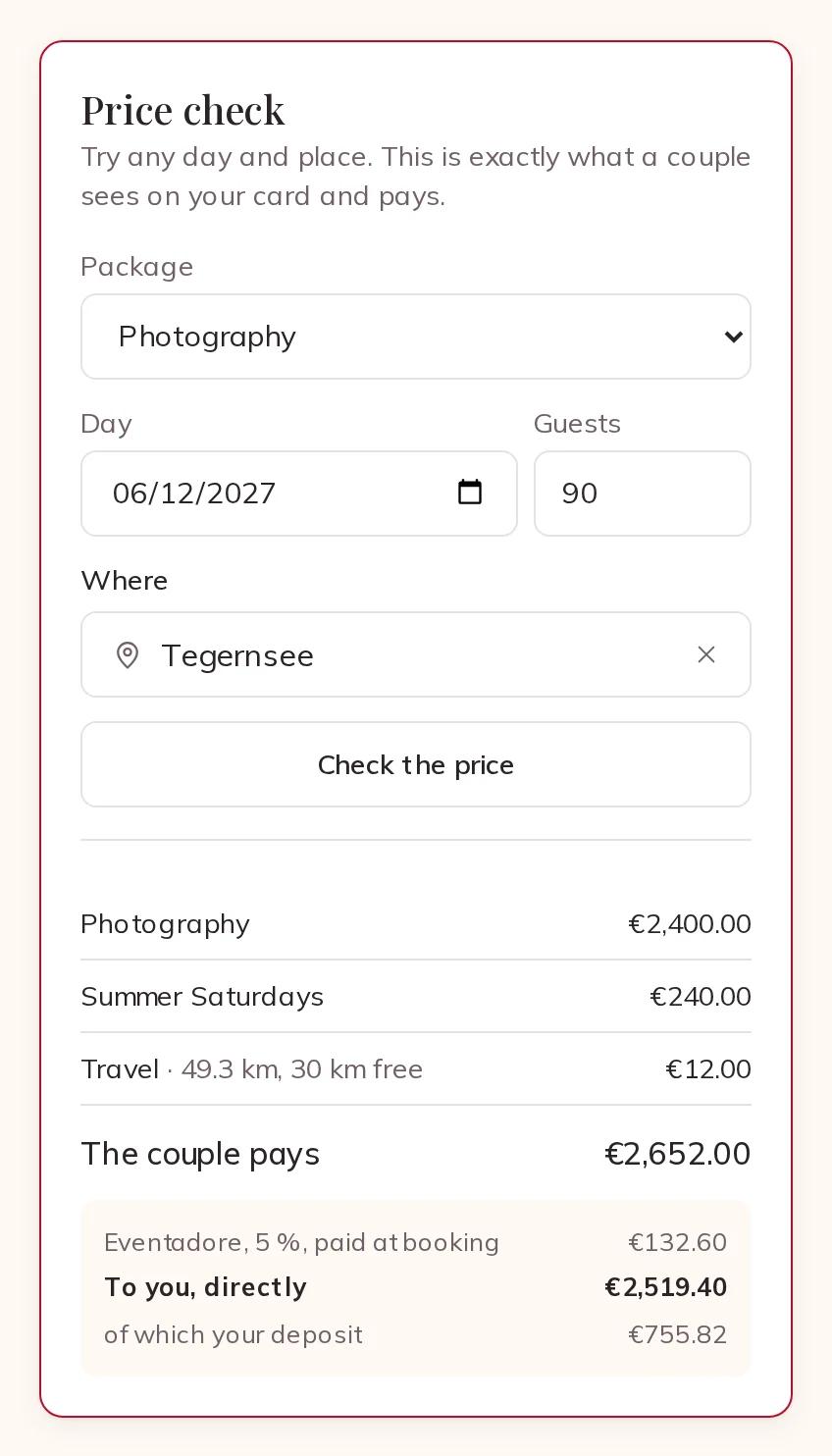
Price check, beside your conditions, shows exactly what a couple sees and pays. Choose a package, a day, the number of guests and where the wedding is, and press Check the price. You see every line, The couple pays, our booking fee — already inside that total — and To you, directly, with your deposit.
On the phone app, the same pages are under Account: Profile, Prices & services, Your details and Conditions. There you choose your cover with Make cover; dragging photos into order and the price check are on the web.